AI-POWERED DOCS
What do you want to know?
Step 1: Image Settings
Before the AI can inspect anything, the camera needs to capture a clean, consistent image. This step configures how the camera takes photos.
Remember the waterfall: Everything downstream depends on these settings. If you change image settings later, you'll need to recapture your template image, redo alignment, and potentially retrain your AI model. Get it right now.
Open imaging setup
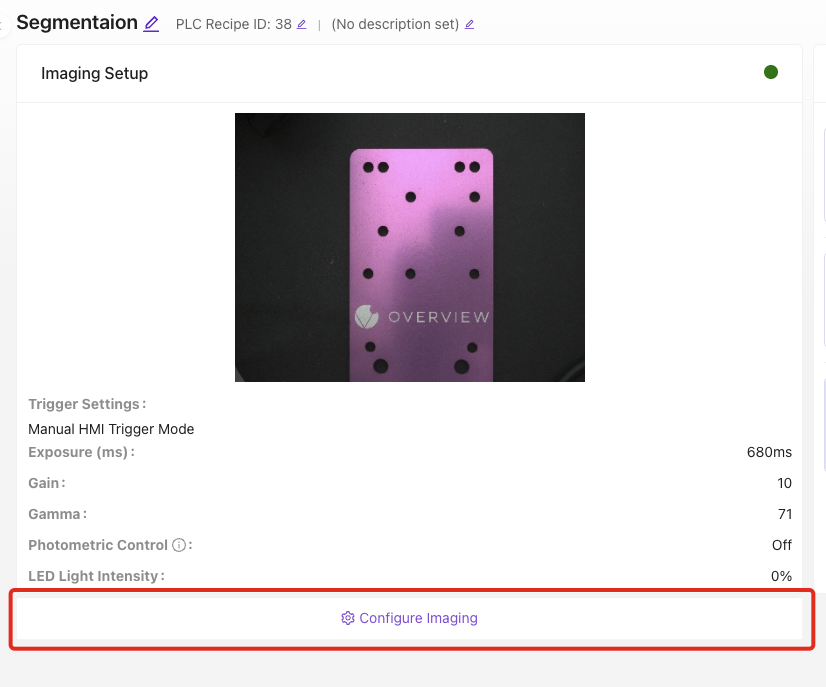
In your recipe editor, click Configure Imaging. Place your part in the camera's field of view. You'll see the current camera view with your settings applied.
The settings that matter most
Focus
Adjust until edges in the image look crisp and sharp. Use a target with clear edges (like a ruler or the part itself) as your reference.
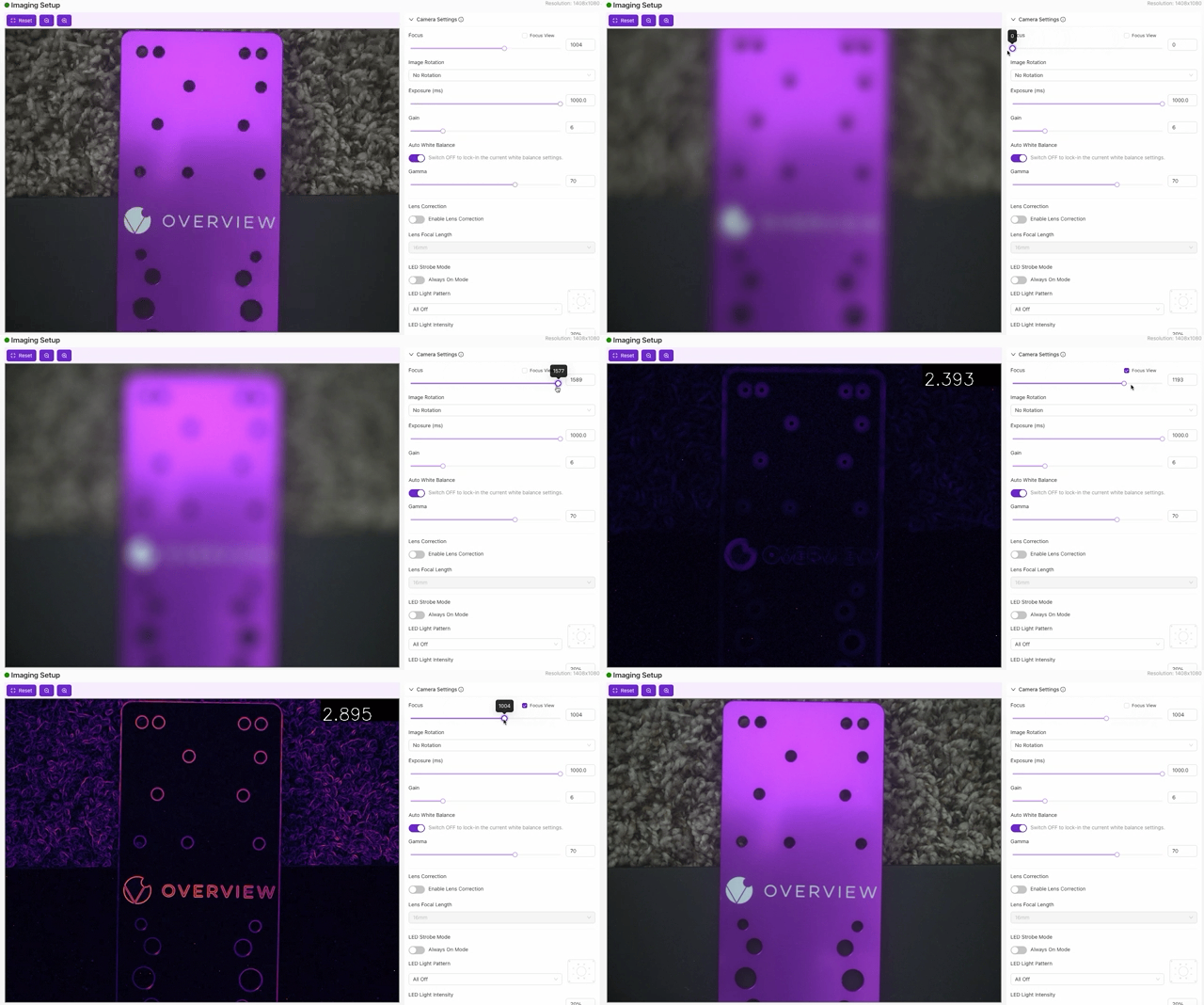
- OV20i: Software-controlled focus; adjust via the slider
- OV80i: Manual focus ring on the C-mount lens; adjust by hand
Exposure (ms)
How long the sensor is exposed to light per capture.
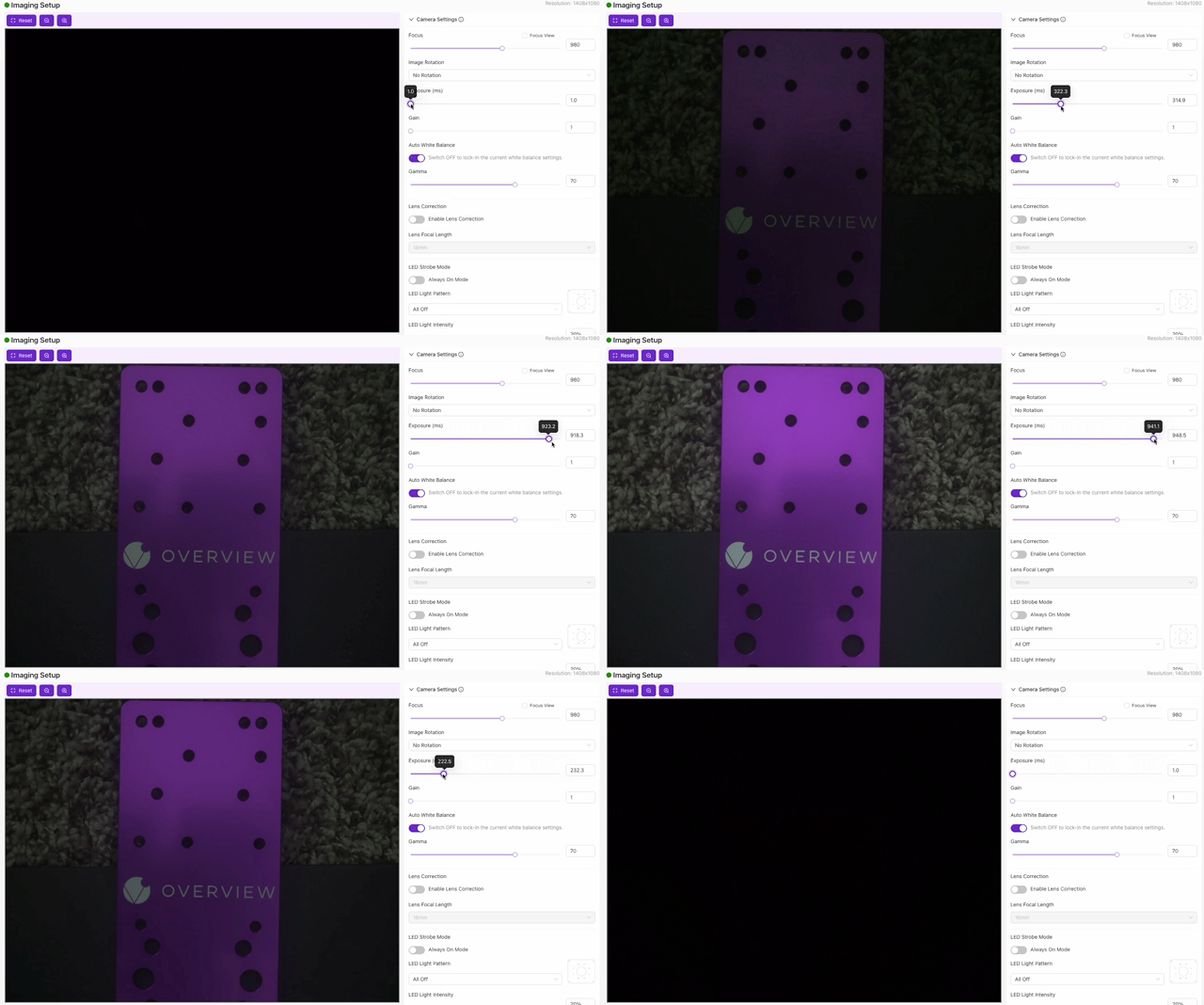
- Higher exposure = brighter image, but more motion blur if the part is moving
- Lower exposure = sharper image, but darker (may need more lighting)
- Start in the middle and adjust until the image looks properly lit without blur
Gain
Digital brightness boost (like ISO on a regular camera).
- Higher gain = brighter but noisier (grainy)
- Lower gain = cleaner but needs good physical lighting
- Rule of thumb: Fix brightness with lighting and exposure first. Use gain as a last resort.
Lens Distortion Correction
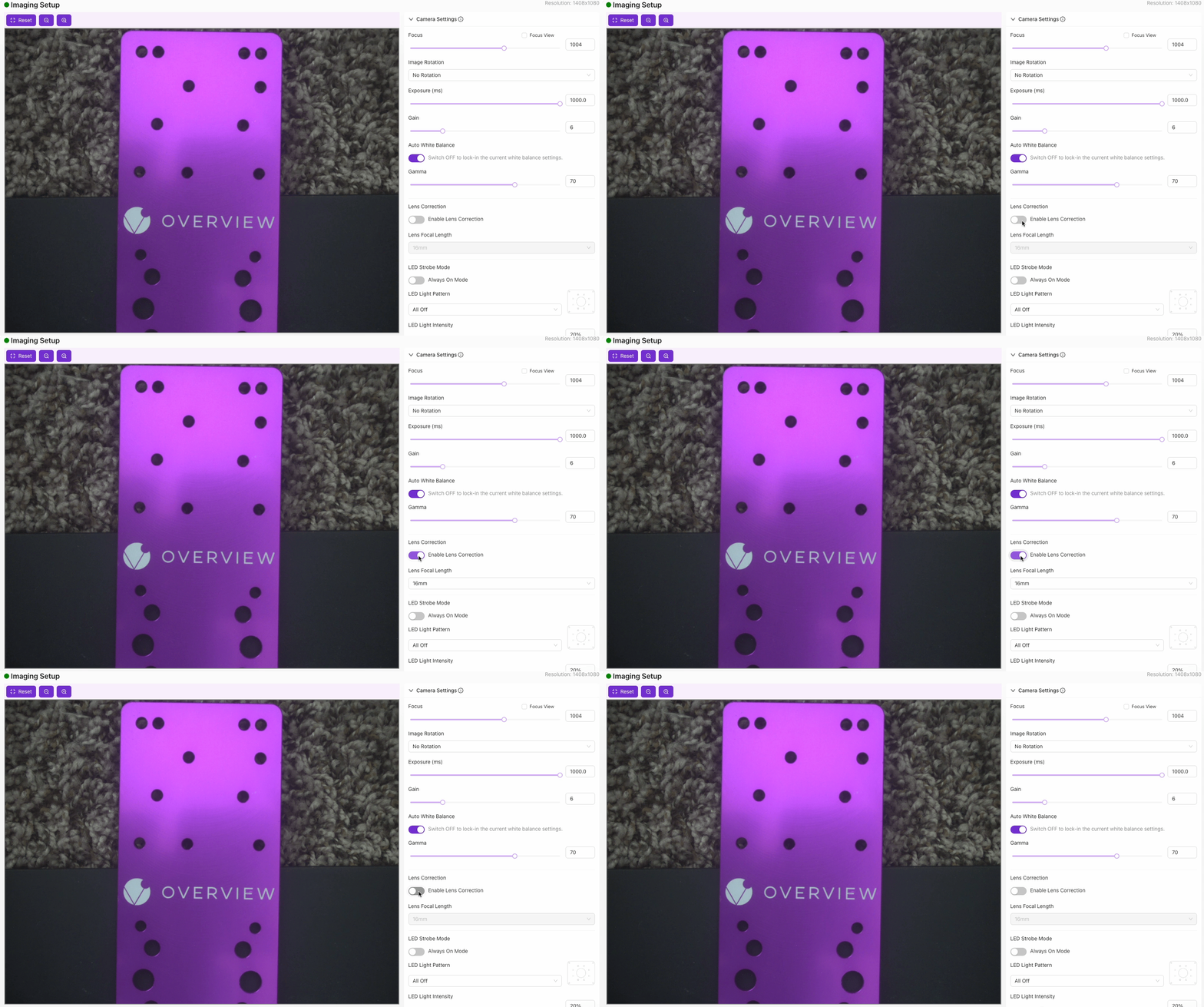
Wide-angle lenses (especially 4-6mm) bend straight lines near the edges of the frame. This setting corrects that distortion so the AI sees accurate geometry.
Use it when: You're using a wide-angle lens (4-6mm) and need accurate alignment or edge detection. The aligner (Step 2) depends on straight edges, so uncorrected distortion can cause unreliable alignment.
Skip it when: You're using a longer focal length lens (12mm+) where barrel distortion is minimal and straight lines already appear straight near the edges of the frame.
If you skip this now and enable it later, you'll need to redo alignment and everything after it.
LED Settings (OV20i only)
- Strobe Mode: Off (continuous) or On (flash only during capture, which reduces heat and saves power)
- Light Pattern: Which LEDs are active. Adjust to reduce glare on shiny surfaces
- Light Intensity: Start low and increase until the image is well-lit without hot spots
Other useful settings
| Setting | What it does | When to adjust |
|---|---|---|
| White Balance | Adjusts color temperature | Auto for variable lighting, manual for consistent setups |
| Gamma | Adjusts mid-tone brightness | When image is too dark in shadows but highlights are fine |
| Image Rotation | Rotates the image 0 or 180 degrees | When the camera is mounted upside down |
| Photometric Control | Multiple captures with different LED angles, combined | For detecting subtle surface defects on reflective parts |
Verify before moving on
-
Review the camera view and capture several test images
-
Check that every image is:
- Sharp (not blurry)
- Well-lit (no dark areas or hot spots)
- Consistent (each capture looks similar to the last)
- The part fills most of the frame
-
Click Save Imaging Settings
Image settings checklist
Before moving on, confirm:
- Focus is sharp: edges look crisp in the camera view
- Exposure is set: image is properly lit without motion blur
- Gain is minimal: brightness comes from lighting, not digital boost
- Lens distortion correction enabled (if using wide-angle lens)
- LED settings configured (OV20i): no glare or hot spots
- Captured images show consistent results shot to shot
- Settings saved
Image looks good? Move to Step 2: Alignment.