GenAI Toolkit

Time: 5 minutes (reading)

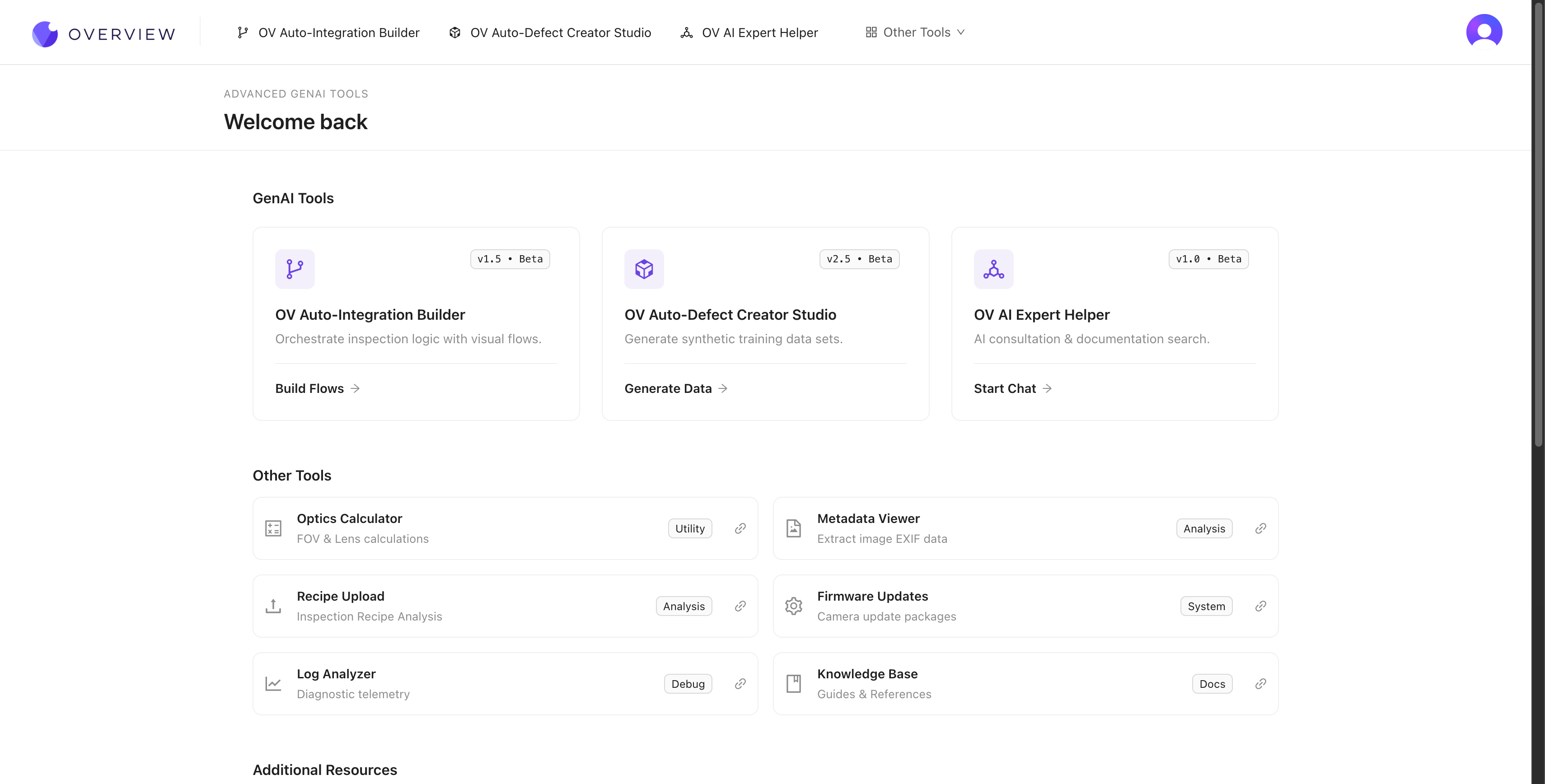
Three AI-powered tools at tools.overview.ai accelerate every stage of your inspection workflow. Generate synthetic training data, build factory integrations from plain English, and get instant expert help -- all without waiting for support tickets or specialized expertise.

Defect Studio
Integration Builder
AI Expert Helper

OV Auto-Defect Creator Studio

Problem it solves: You need training data for rare defects, but waiting for them to happen naturally takes weeks or months.

What it does: Generates photorealistic synthetic defect images from a single good image + a plain English description. Upload a good part, mark where the defect should appear, describe it ("hairline crack along the weld seam"), and get dozens of realistic training images in seconds -- up to 10,000x faster than waiting for real defects.

How it works

  1. Upload a good image of your part
  2. Mark the area where the defect should appear
  3. Describe the defect in plain English (e.g., "deep scratch across the surface" or "missing solder joint")
  4. Generate the defect variations (the AI creates photorealistic results)
  5. Export the synthetic images directly into your training set

When to use it

  • You need to train for defects you haven't seen yet (new product launch)
  • Rare defects that happen once per 1,000+ parts
  • You want to improve accuracy on specific borderline failure modes
  • You need to supplement a small dataset with more variety

Why synthetic data works

The generated images aren't just "pasted on" artifacts. They're photorealistic variations that match your actual lighting, camera angle, and part surface. The AI understands the physics of how defects look under your specific imaging conditions.

Start with real data, accelerate with synthetic

The best approach: train with your initial 3-5 real images first, identify where the AI struggles, then use Defect Studio to generate targeted synthetic examples for those specific failure modes. Real data teaches the baseline; synthetic data fills the gaps.

Synthetic data supplements real data, it does not replace it

Defect Studio images are powerful for filling gaps in your training set, but they should never be your only source of training data. Always validate your model's accuracy with real production images. A model trained exclusively on synthetic data may not generalize well to real-world conditions.

See it in action

Where it fits in the workflow: You'll use Defect Studio during Step 4: Train Your AI Model to build training data faster.


OV Auto-Integration Builder

Problem it solves: Setting up factory integrations (PLC communication, email alerts, data logging) requires Node-RED expertise you might not have.

What it does: Generates complete, production-ready Node-RED flows from plain English descriptions. Supports 50+ node types including MQTT, Modbus, OPC-UA, HTTP, RS232, and more.

How it works

  1. Open tools.overview.ai and select Auto-Integration Builder
  2. Describe what you want in plain English. For example: "Send an email when 3 failures happen in a row" or "Save fail images to an FTP server with the part serial number"
  3. The AI generates a complete Node-RED flow using 50+ available node types
  4. Review the flow, deploy it to your camera with one click

What it supports

CategoryExamples
Communication protocolsMQTT, Modbus TCP, OPC-UA, HTTP/HTTPS, RS232, RS485
Data routingFTP, databases, MES systems, cloud storage
LogicTime-series analysis, conditional branching, aggregation
NotificationsEmail, Microsoft Teams, Slack, webhooks
Hardware I/OStack lights, reject gates, conveyors, PLCs
Customize generated flows after deployment

Integration Builder generates Node-RED flows that you can customize further after generation. The generated flow is a starting point. You can open it in the Node-RED editor on your camera, add nodes, adjust logic, and extend it however you need.

Modify Mode

Already have a flow? Use Modify Mode: paste an existing flow and describe what you want changed. The builder updates the flow while preserving your existing logic.

See it in action

Where it fits in the workflow: You'll use the Integration Builder during Step 5: Setting Up Outputs to configure factory communication.


OV AI Expert Helper

Problem it solves: You have a question at 2 AM and need help now.

What it does: AI-powered assistant that knows everything about the OV camera -- setup, troubleshooting, best practices, and advanced configurations. Available 24/7 at tools.overview.ai.

When to use it

  • Anytime you're stuck or unsure about a setting
  • When troubleshooting complex multi-step issues
  • For best-practice recommendations specific to your use case
  • When you need step-by-step guidance for advanced configurations

What it knows

The AI Expert Helper is trained on the complete OV camera documentation, including:

  • Hardware installation and wiring
  • Network configuration and connectivity
  • Recipe creation, alignment, and inspection setup
  • AI model training and optimization
  • Node-RED flow design and debugging
  • PLC integration and communication protocols
  • Troubleshooting and maintenance procedures

Where it fits in the workflow: Use the AI Expert Helper anytime during your setup journey. It's also referenced in Troubleshooting & FAQ as your first line of support.


The GenAI toolkit advantage

Together, these three tools can reduce your deployment time from days to hours:

Without GenAI toolsWith GenAI tools
Wait weeks for rare defect samplesGenerate synthetic defects in seconds
Learn Node-RED from scratchDescribe flows in plain English
Wait for support during business hoursGet instant AI expert help 24/7
Multiple iterations over daysRapid iteration in a single session

All three tools are available at tools.overview.ai.