AI-POWERED DOCS
What do you want to know?
Step 1: Image Settings (OV80i)
Before the AI can inspect anything, the camera needs to capture a clean, consistent image. This step configures how the camera takes photos.
Remember the waterfall: Everything downstream depends on these settings. If you change image settings later, you'll need to recapture your template image, redo alignment, and potentially retrain your AI model. Get it right now.
Open imaging setup
In your recipe editor, click Configure Imaging. Place your part in the camera's field of view. You'll see the current camera view with your settings applied.
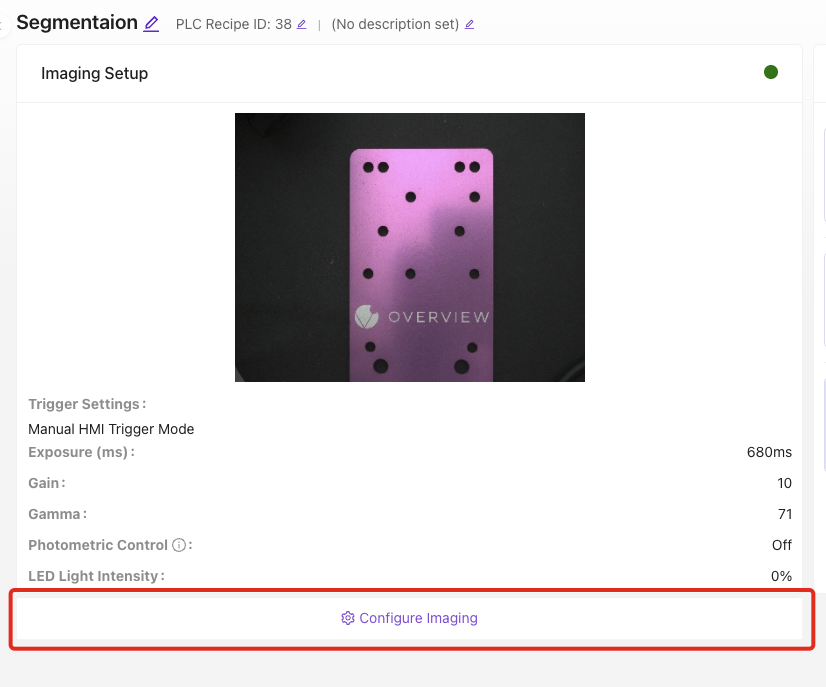
The settings that matter most
Focus
The OV80i uses C-mount lenses, so focus is set on the lens itself — there is no focus slider in the software. Turn the focus ring until edges look crisp and sharp, then lock the ring. Adjust the aperture ring to control depth of field. Use a target with clear edges (like a ruler or the part itself) as your reference.
Tick Enable Focus View in Camera Settings while you turn the ring. It highlights edges and shows a focus score, so you can tell when the lens is at its sharpest instead of eyeballing it.
External Lighting Check
The OV80i requires external lighting. Before adjusting other settings, verify your lighting is even, consistent, and reveals the defects you need to detect.
- Position lights to minimize shadows and glare
- Use diffuse lighting for reflective surfaces
- Ensure consistent illumination across the entire inspection area
- Test that lighting conditions won't change during production (avoid relying on ambient light)
Exposure (ms)
How long the sensor is exposed to light per capture.
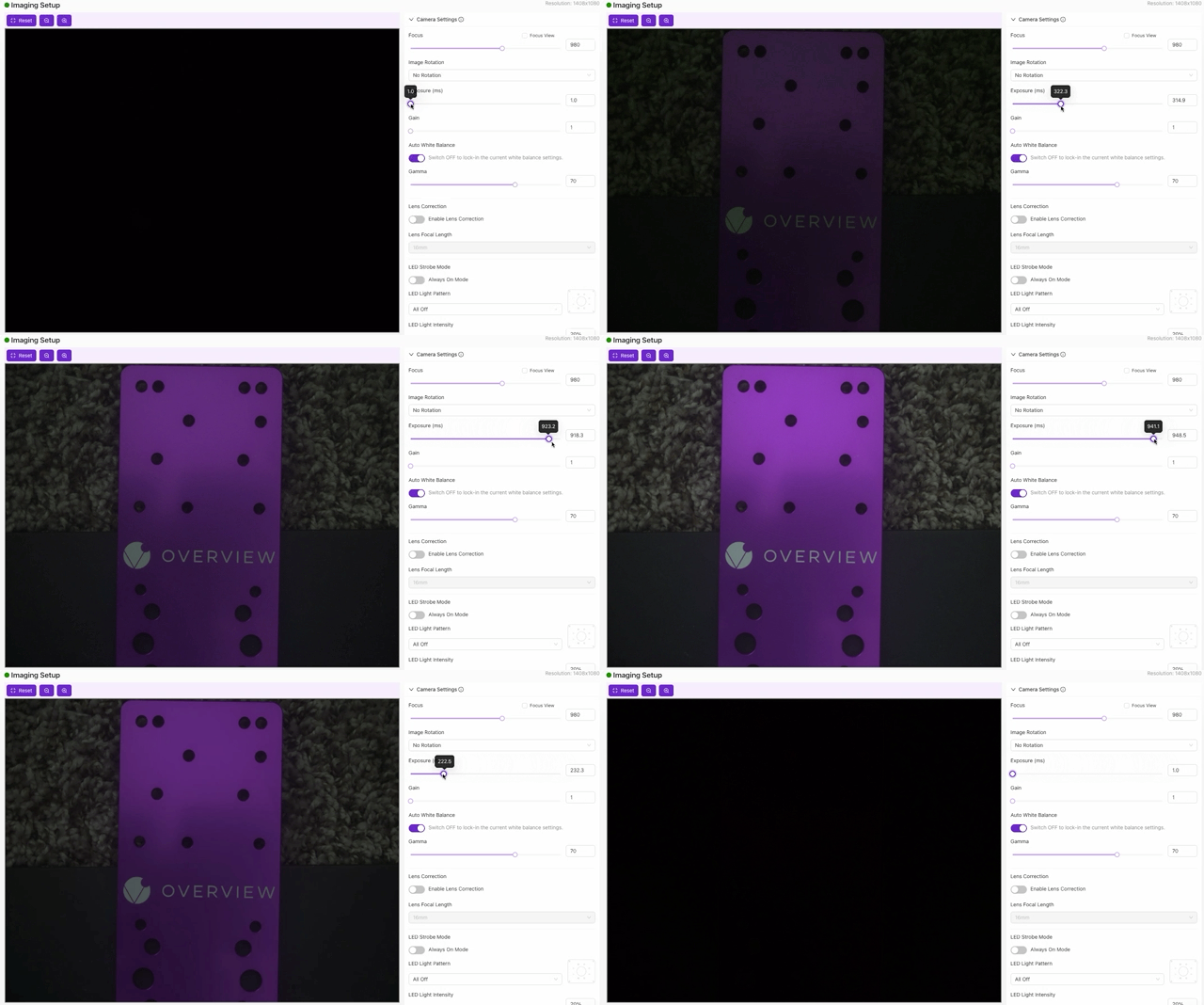
- Higher exposure = brighter image, but more motion blur if the part is moving
- Lower exposure = sharper image, but darker (may need more lighting)
- Start in the middle and adjust until the image looks properly lit without blur
Gain
Digital brightness boost (like ISO on a regular camera).
- Higher gain = brighter but noisier (grainy)
- Lower gain = cleaner but needs good physical lighting
- Rule of thumb: Fix brightness with lighting and exposure first. Use gain as a last resort.
Other useful settings
| Setting | What it does | When to adjust |
|---|---|---|
| White Balance | Adjusts color temperature | Auto for variable lighting, manual for consistent setups |
| Gamma | Adjusts mid-tone brightness | When image is too dark in shadows but highlights are fine |
| Image Rotation | Rotates the image 0 or 180 degrees | When the camera is mounted upside down |
A good rule of thumb: if you cannot clearly see the defect or feature in the camera image, the AI will not be able to learn it either. Verify that your target features are visible, sharp, and well-contrasted before moving on.
If defects are rare and slowing down your data collection, use the Defect Creator Studio to generate photorealistic synthetic defect images from a single good part image. Getting image settings right first ensures the synthetic images match your real production conditions.
Verify before moving on
-
Review the camera view and capture several test images
-
Check that every image is:
- Sharp (not blurry)
- Well-lit (no dark areas or hot spots)
- Consistent (each capture looks similar to the last)
- The part fills most of the frame
-
Click Save Imaging Settings
If you change image settings after capturing a template, you must recapture the template and redo alignment. Your regions of interest (ROIs) and trained AI model may also need to be updated. This is the waterfall principle in action. Get image settings right before proceeding.
Image settings checklist
Before moving on, confirm:
- Focus is sharp: edges look crisp in the camera view (manual focus ring adjusted)
- Exposure is set: image is properly lit without motion blur
- Gain is minimal: brightness comes from lighting, not digital boost
- External lighting verified: even coverage, no glare or hot spots
- Captured images show consistent results shot to shot
- Settings saved
Image looks good? Move to Step 2: Alignment.