AI-POWERED DOCS
What do you want to know?
Sparky
Sparky is OV Spark's edge copilot: an assistant that runs on the camera itself, with the cloud optional. It can set up a new recipe with you from a plain-language goal, answer questions about how the camera works and which tool to use, and look into what has been happening on the line.
Firmware 2026.10.13 puts Sparky front and center. Open it from Ask Sparky at the bottom of the left-hand navigation, from the Sparky character in the bottom-right corner of any screen, or from the Sparky button in the recipe editor, which opens it as a side panel next to the step you are on.
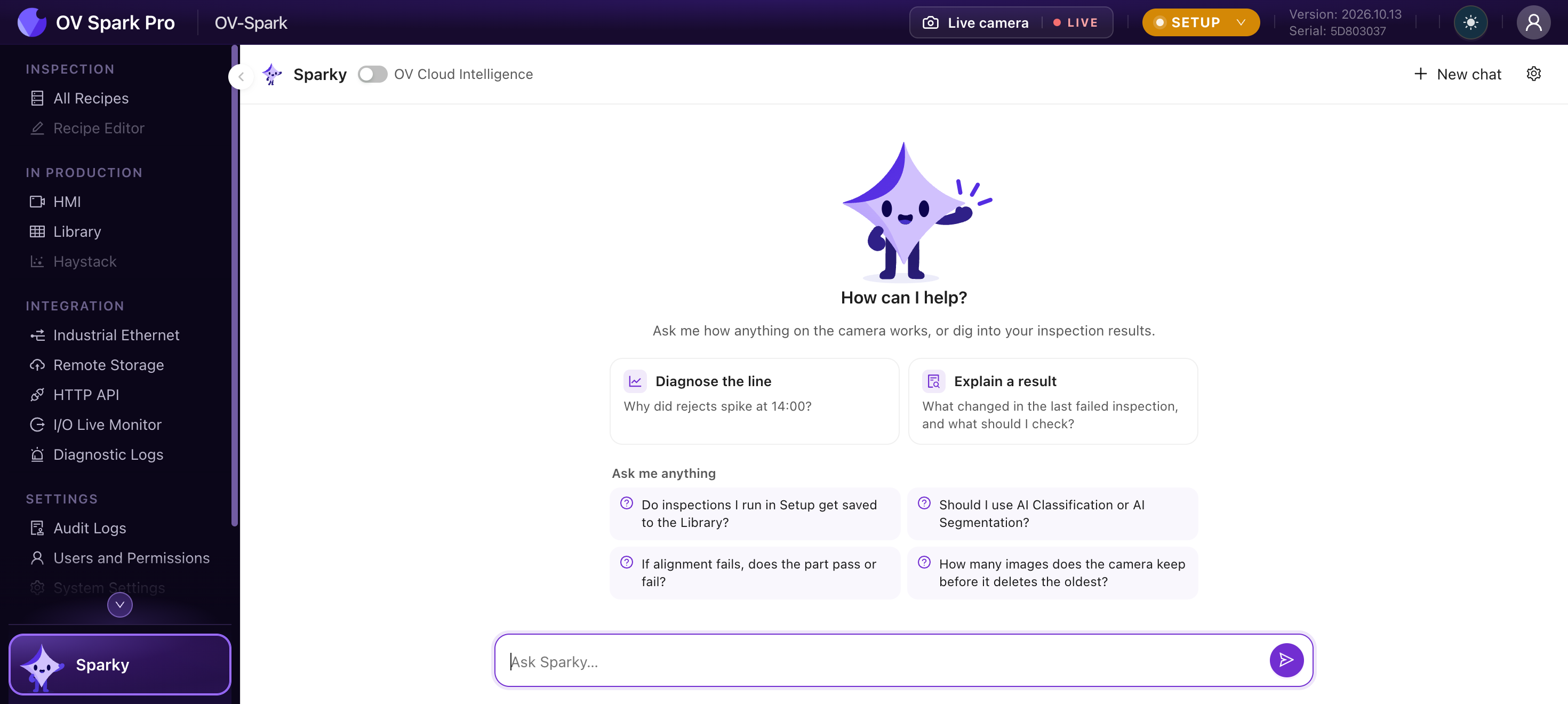
The home screen offers two starting points, Diagnose the line and Explain a result, and a set of Ask me anything questions about using the camera, such as whether Setup inspections are saved to the Library or when to choose AI Classification over AI Segmentation.
Set up a recipe with Sparky
Every new recipe starts with a Goal step. Describe what the recipe should check, Sparky proposes the tools, and once you confirm the plan it walks you through every step of the recipe editor in order, from Smart Imaging to activation. See Set a goal with Sparky.
Ask it how the camera works
Sparky now knows the camera well enough to answer general questions about using it and best practice for specific tools, not only questions about your data. For example:
- If alignment fails, does the part pass or fail?
- How many images does the camera keep before it deletes the oldest?
- What makes a good master image for AI Count?
What it can actually do
Sparky is not only a chat window. It can call the camera's own functions, and it narrates each one as it goes.
Reading, which it does freely:
- Searching the capture library
- Charting pass and fail over time
- Scanning for drift
- Breaking down the failures
Writing, which changes the machine:
- Activating a recipe
- Setting the trigger
- Setting the default judgment
- Updating or resetting the HMI layout
- Pinning a capture
A write request appears in the chat as Needs approval with Approve and Reject buttons. Nothing changes until you press Approve, and an unanswered request expires rather than proceeding.
Read actions run without asking, because they cannot change anything.
Every tool call is recorded in Audit Logs, so a change Sparky made on your approval is attributable in exactly the same way as one you made by hand.
Questions worth asking it
Sparky is at its most useful when the question would otherwise mean cross-referencing several screens:
- Which tool is causing most of today's failures?
- Has the classifier's confidence drifted this week?
- Show me the failures from the night shift
- Why did this capture fail?
For those it searches the Library, charts the result, and can hand you an Open in Library link with the filters already applied, so you can check its reasoning rather than taking it on trust.
The Library link is the point. Use it. An assistant that shows you the underlying captures is one you can check; a summary with nothing behind it is one you cannot.
The cloud model
A OV Cloud Intelligence toggle switches Sparky to a cloud-hosted model, which is more capable than the on-camera one.
With it on, the information Sparky needs to answer leaves the device. The camera is offline by default and connects only while a cloud tool is actually in use, but if your site prohibits sending production images or data off-premises, leave this off.
The toggle is restricted to Engineers and Admins.
With it off, Sparky still works using the on-camera model.
From firmware 2026.11.9, Sparky runs on a new on-camera model. It is better at using the camera's tools, holds up better in long conversations, and is much better in languages other than English, Chinese in particular.
Limits worth knowing
- Sparky sees the section you are on for context, shown as a Sees: chip
- A session can be taken over by another user, and yours will say so
- Read-only users can use its read tools but not its write tools
- Some features, such as the HMI Sparky layout button, need the cloud model and are disabled without it
- Sparky is paused while a segmentation model trains. It will be back automatically when training finishes.
Where to go next
- Defect Studio, the other agentic tool
- Library, where its answers come from
- Audit Logs