AI-POWERED DOCS
What do you want to know?
OV Fleet
Introduction
OV Fleet is a web application that gives you a live view of every camera in your facility — what's online, what recipe is running, and what software version is installed — all from one screen. It is also the authentication gateway for the OV Pro Tools platform: every user, every role, and every API request flows through Fleet.
Features
Camera inventory
The main view lists every camera in your fleet. Each entry shows the camera's name, IP address, connection state, active recipe, and software version, all updated automatically in the background without any manual refresh.
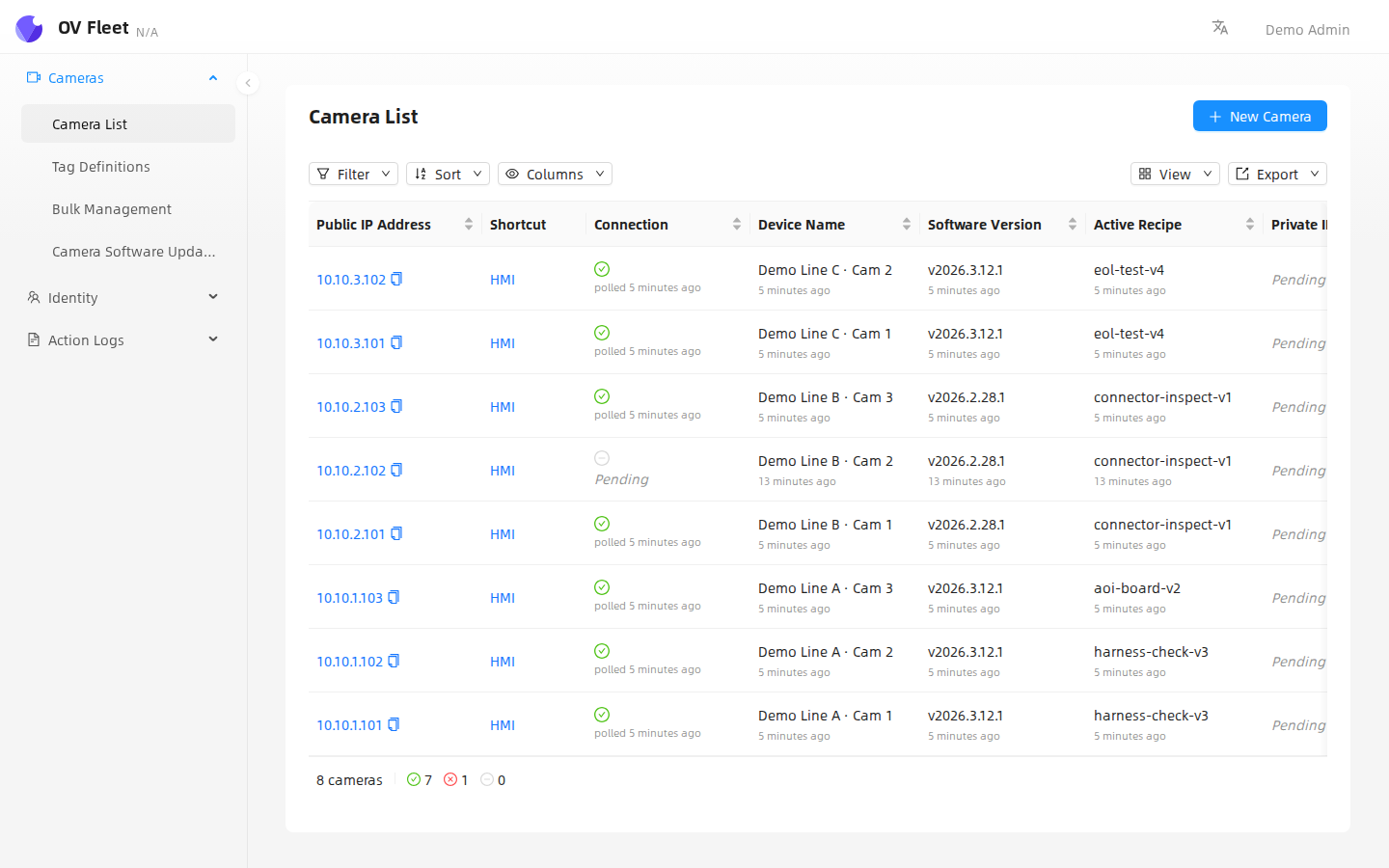
You can filter the list by any field — connection state, tag, recipe name, software version — using nested AND/OR rules, and sort by any column. The Columns button lets you show or hide fields you don't need on screen.
Live state polling
Fleet probes each camera on a fixed schedule and keeps the list current without any manual action. When a camera goes offline, its row changes immediately on the next poll cycle. Connection state is checked every few minutes; recipe and software version are checked less frequently so polling does not add load during active production.
Concepts
Grouping parameters and Camera Grouping Sources. See Concepts.
Cameras
The camera list, the device page, the reachability timeline, and the change history. See Cameras.
Vision Applications
Grouping cameras into vision applications, with list and detail pages and archiving. See Vision Applications.
User management and roles
Fleet controls who can do what across the entire platform. Access is managed under Identity in the sidebar.
There are three roles. Admins have full access to cameras, users, teams, settings, and software updates. Engineers can add, edit, and delete cameras. Operators can view cameras only.
Admins create users under Identity → Users and assign a role at creation time. Users can be grouped into Teams for easier management across large facilities.
Traceability management
Fleet records every user action in an audit log — logins, page visits, camera list changes, column preferences, and filter operations — with a timestamp, the acting user, and structured details about what changed.
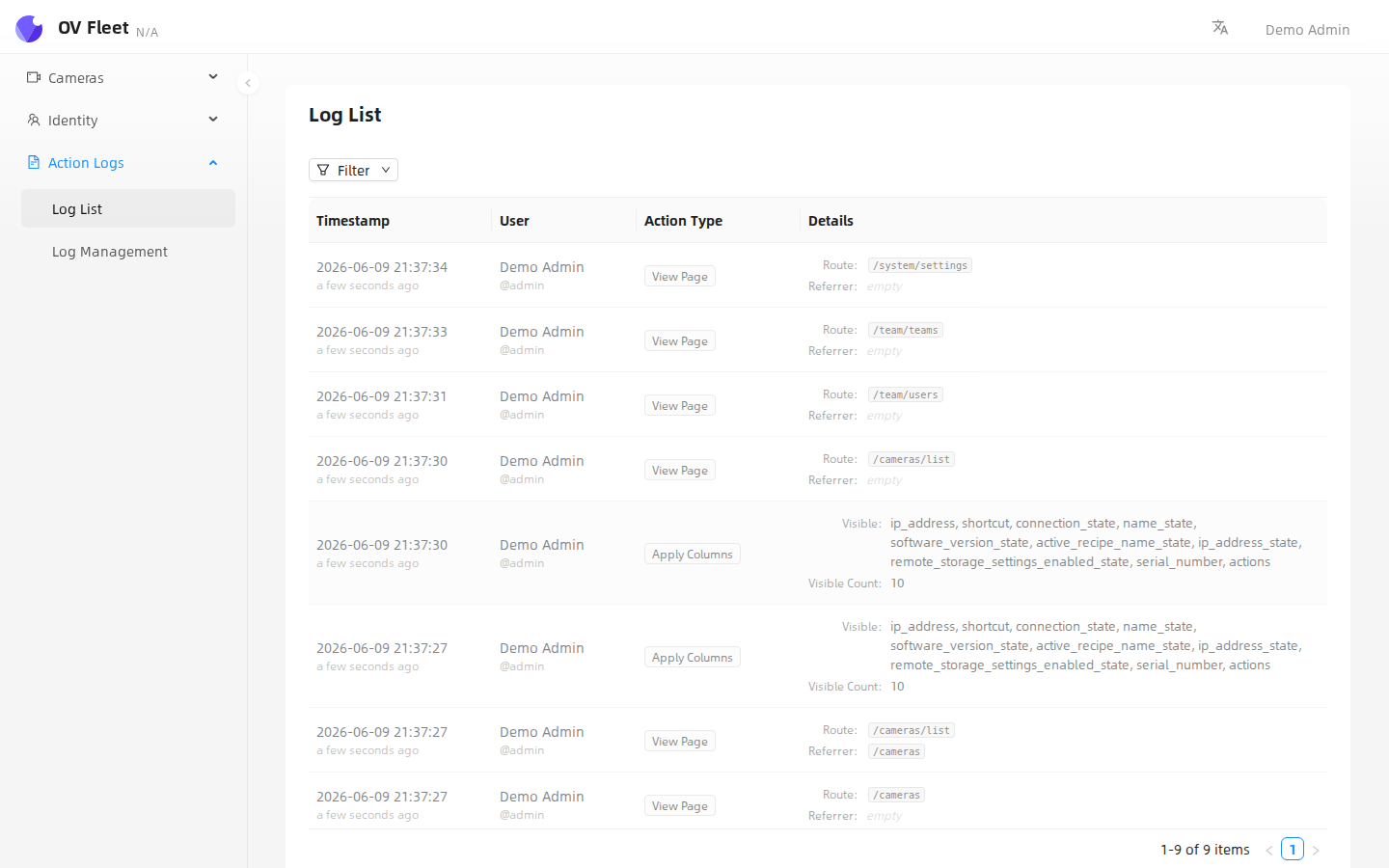
You can narrow the log by user, action type, or date range using the Filter toolbar. Each entry captures the route the user was on and any relevant context — for example, which columns were toggled or which filter was applied — giving you a complete picture of who did what and when.
Admins can set a retention cutoff under Action Logs → Log Management to permanently remove entries older than a chosen date, keeping the log focused on the period your compliance policy requires.
Software updates
OV Fleet supports over-the-air (OTA) updates delivered entirely through the web UI. When Overview releases a new version, you upload the .ovupdate file from your browser — no SSH access, no command-line tools, and no need to coordinate a downtime window with your operations team. Fleet restarts its services in the background and the page reloads automatically when the new version is live.
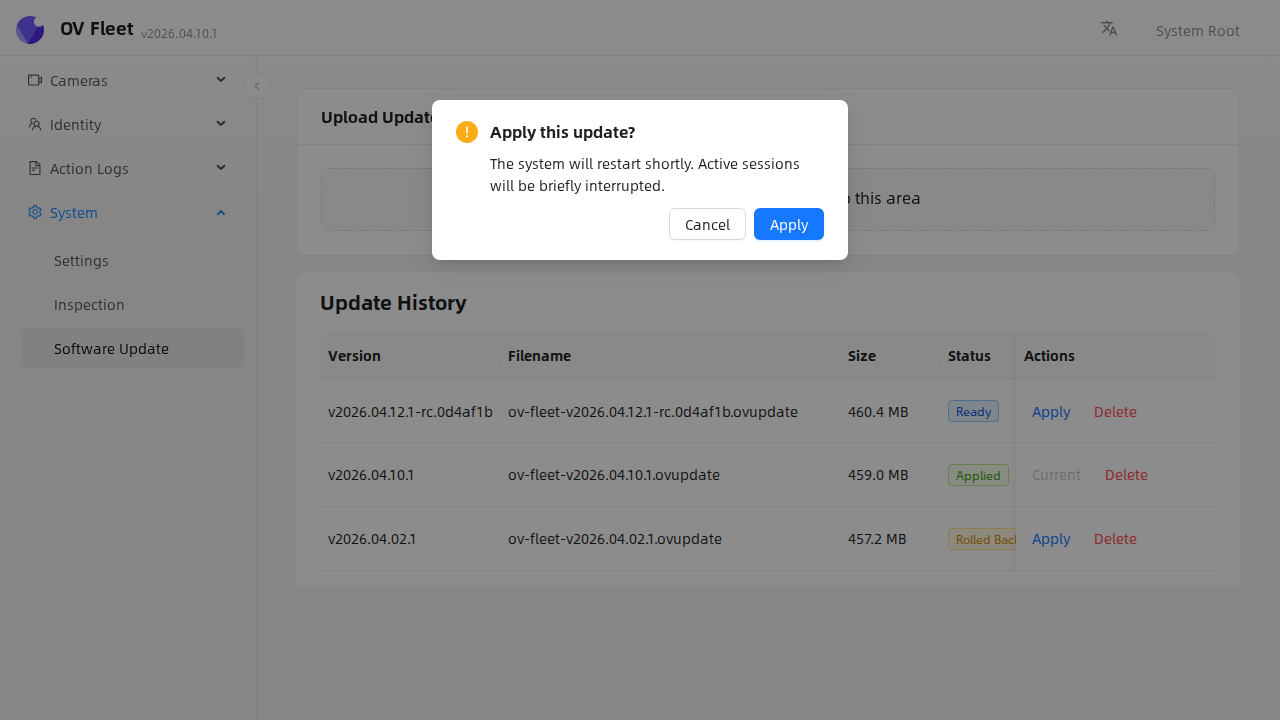
The update history panel records every version ever applied and its current status, giving you a full audit trail across the fleet.