AI-POWERED DOCS
What do you want to know?
Get Started
Prerequisites
-
Git — Download and install Git, then enable LFS:
git lfs install -
VPN — Connect to your VPN (required to reach external package registries and the recipe server).
-
uv — Install uv.
Install
Step 1. Download the latest OV Hub .whl from the ov-hub-artifacts releases page, then install it:
uv tool install --force ./ov_hub-<version>-py3-none-any.whl
Step 2. Verify the installation:
ov-hub doctor
It's normal for some checks to show as failed at this point — authentication hasn't been configured yet and will be completed during initialization.
Initialization
Step 1. Start the OV Hub server. Choose based on your role:
-
View and sync recipes only:
ov-hub serve -
Publish new recipe versions to the team:
ov-hub serve --allow-publish-new-version
Step 2. Open http://localhost:8080/ and go to the Settings page. Set your Name and Email. For the SSH Key, use the key provided by your team lead.
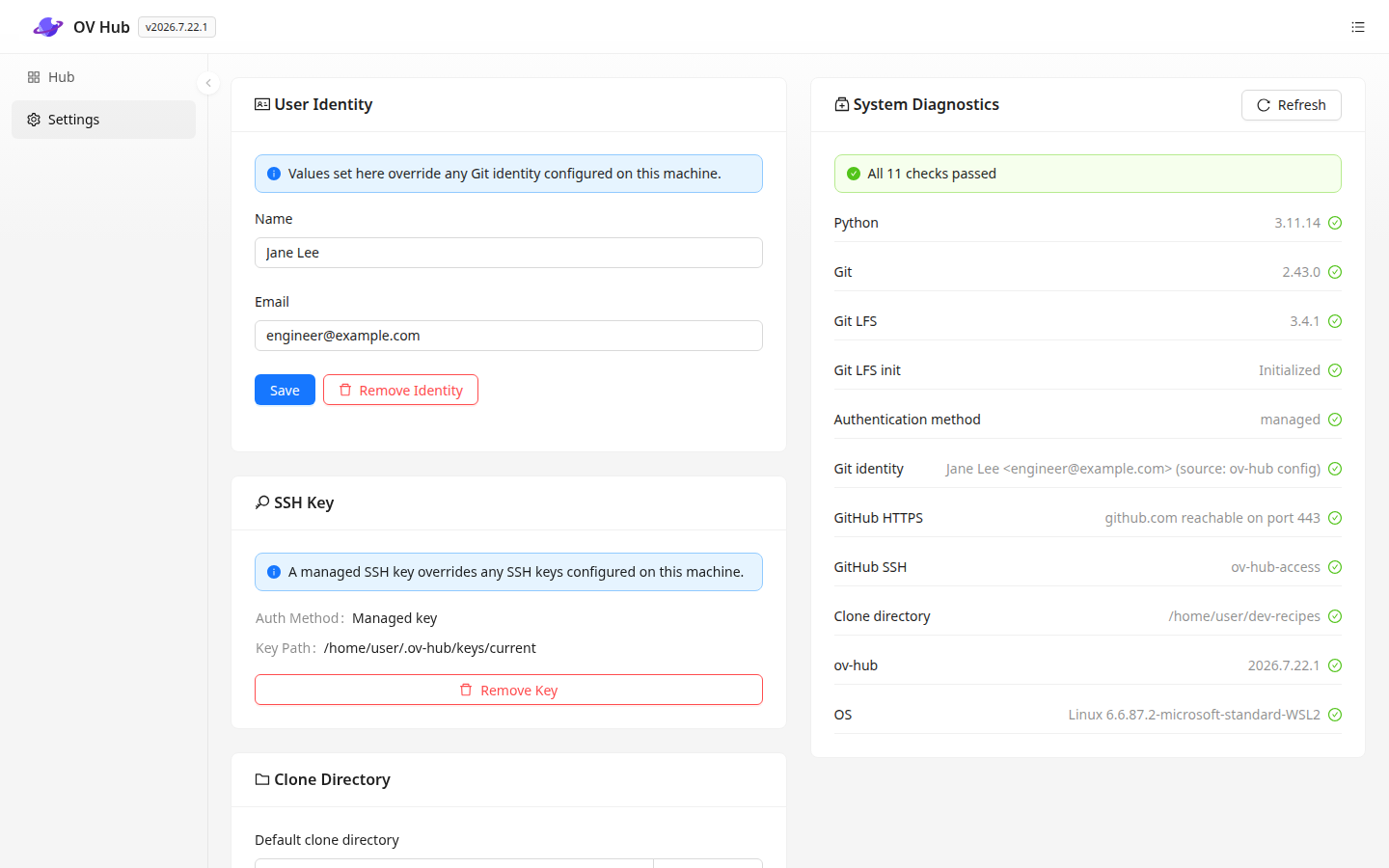
Step 3. Create a local folder to use as the root directory for your recipe repositories. In Settings, enter its path in the Default Clone Directory field.
Upgrade
New OV Hub versions are distributed as .whl files, the same way as the initial install. Upgrading replaces only the application itself — everything on the Settings page, your SSH key, and your recipe repositories are stored outside the application and carry over unchanged, so there is nothing to reconfigure afterwards.
Step 1. Close the running OV Hub server: switch to the terminal running ov-hub serve and press Ctrl+C.
Step 2. Download the latest .whl from the ov-hub-artifacts releases page and review the release notes there, then install it:
uv tool install --force ./ov_hub-<version>-py3-none-any.whl
Step 3. Verify the upgrade:
ov-hub --version
ov-hub doctor
ov-hub --version should now report the new version, and ov-hub doctor should show the same results as before the upgrade.
Step 4. Start the server again with the same command as before, then reopen http://localhost:8080/.
Gotchas
- Keep the terminal open. OV Hub must stay running while you work — including during background uploads and downloads. Do not close the terminal running the server.
- Close the server before upgrading. On Windows, the upgrade may not complete while OV Hub is still running. If a recipe upload or download is in progress, wait for it to finish first.
Uninstall
uv tool uninstall ov-hub
This removes the application only. Your settings and SSH key (in the .ov-hub folder of your home directory) and your recipe repositories stay on disk — delete them manually if you want to remove everything.