AI-POWERED DOCS
What do you want to know?
Open the OV20i in Your Browser
The camera is mounted and powered. Now let's see what it sees.
The OV20i is controlled entirely through a web browser; no special software to install. You just need a computer (or tablet) on the same network as the camera.
Step 1: Get on the same network
Connect your computer to the same network as the camera. You can do this two ways:
Option A: Direct connection (simplest for setup)
Best when you're setting up the camera for the first time, working at a bench or test station, or don't have a network switch nearby. This gives you a private one-to-one link with no other network traffic.
- Plug an Ethernet cable directly from your computer to the camera
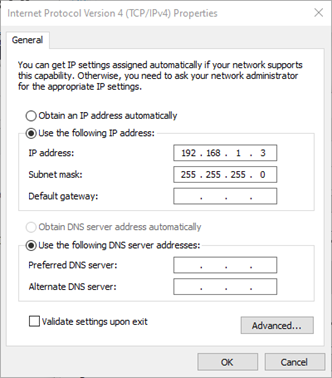
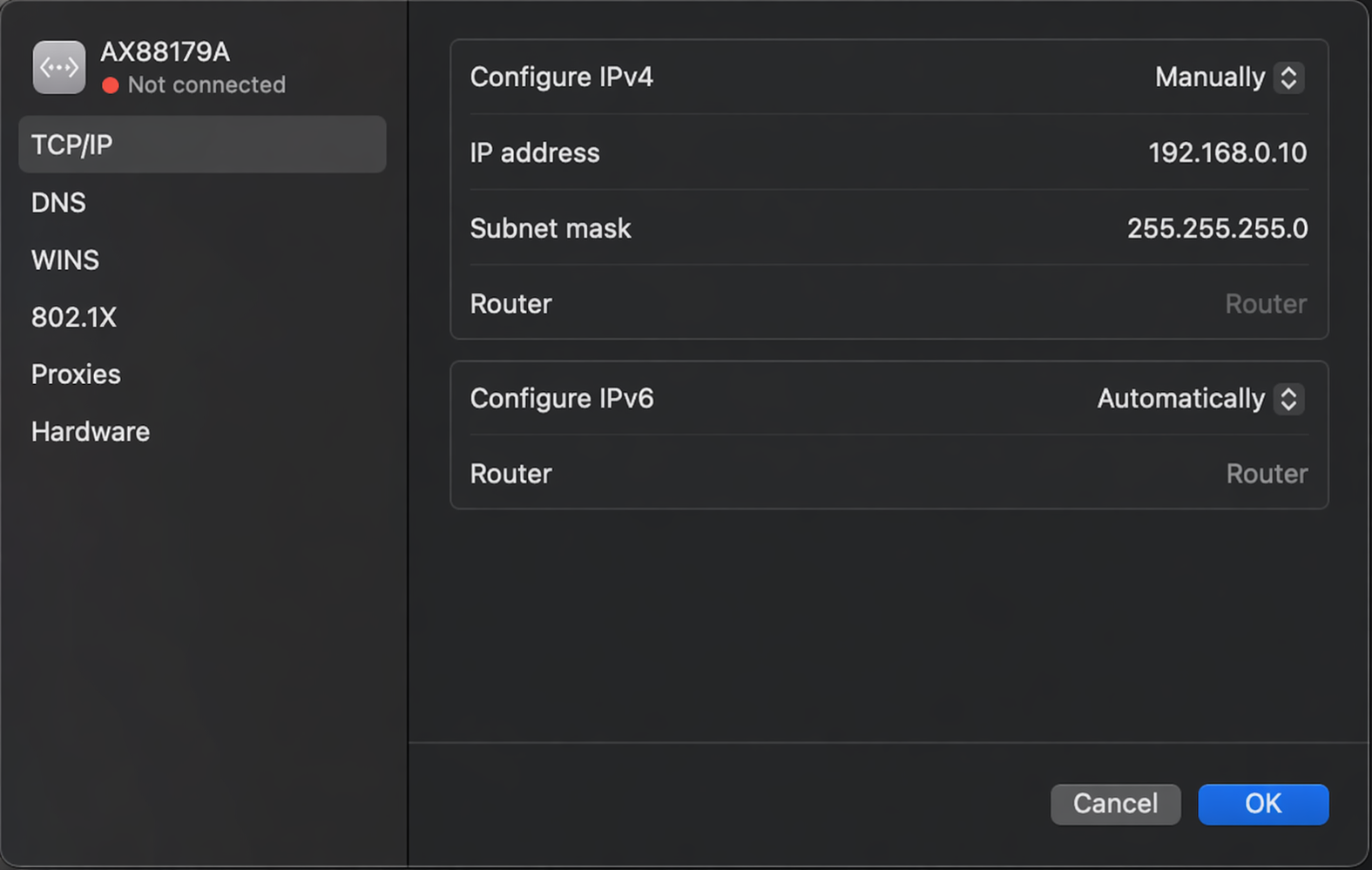
- Set your computer's IP address to something in the same subnet as the camera (e.g.,
192.168.0.50if the camera is at192.168.0.100)
Windows: Open Network Connections, right-click your Ethernet adapter, select Properties, then set the IPv4 address:
Mac: Open System Preferences > Network, select your Ethernet adapter, set Configure IPv4 to "Manually":
Option B: Through a network switch
Best when the camera is already installed on the production line, when multiple people need to access the camera at the same time, or when you want the camera to stay connected to your facility network.
- Connect both the camera and your computer to the same switch
- Make sure they're on the same subnet (192.168.0.X)
The OV20i ships with a default static IP of 192.168.0.100. If your network uses DHCP, the camera can also obtain an IP automatically, but for first-time setup, using the default static IP is easiest.
Step 2: Find the camera's IP address
If you're using the default setup, the camera is at 192.168.0.100.
If the IP has changed or you're using DHCP, you can find it by:
- Checking your network's DHCP lease table
- Using a network scanner tool
- Looking at the camera's LED pattern (refer to the LED Behavior Matrix in Reference)
Step 3: Open the browser
Open Google Chrome (recommended) or Microsoft Edge and navigate to:
http://192.168.0.100
If this is a new camera, you will see the Product Activation page.
Supported browsers: Chrome (recommended), Edge, or Safari. Firefox is not supported and may cause UI or functionality issues.
Step 4: Activate the device
On first connection, the camera shows the Product Activation page. Complete the following to activate your device:
- Enter your Company name
- Enter your Company Email address
- Expand and review the End User License Agreement
- Check the box to accept the End User License Agreement
- Click Activate Device
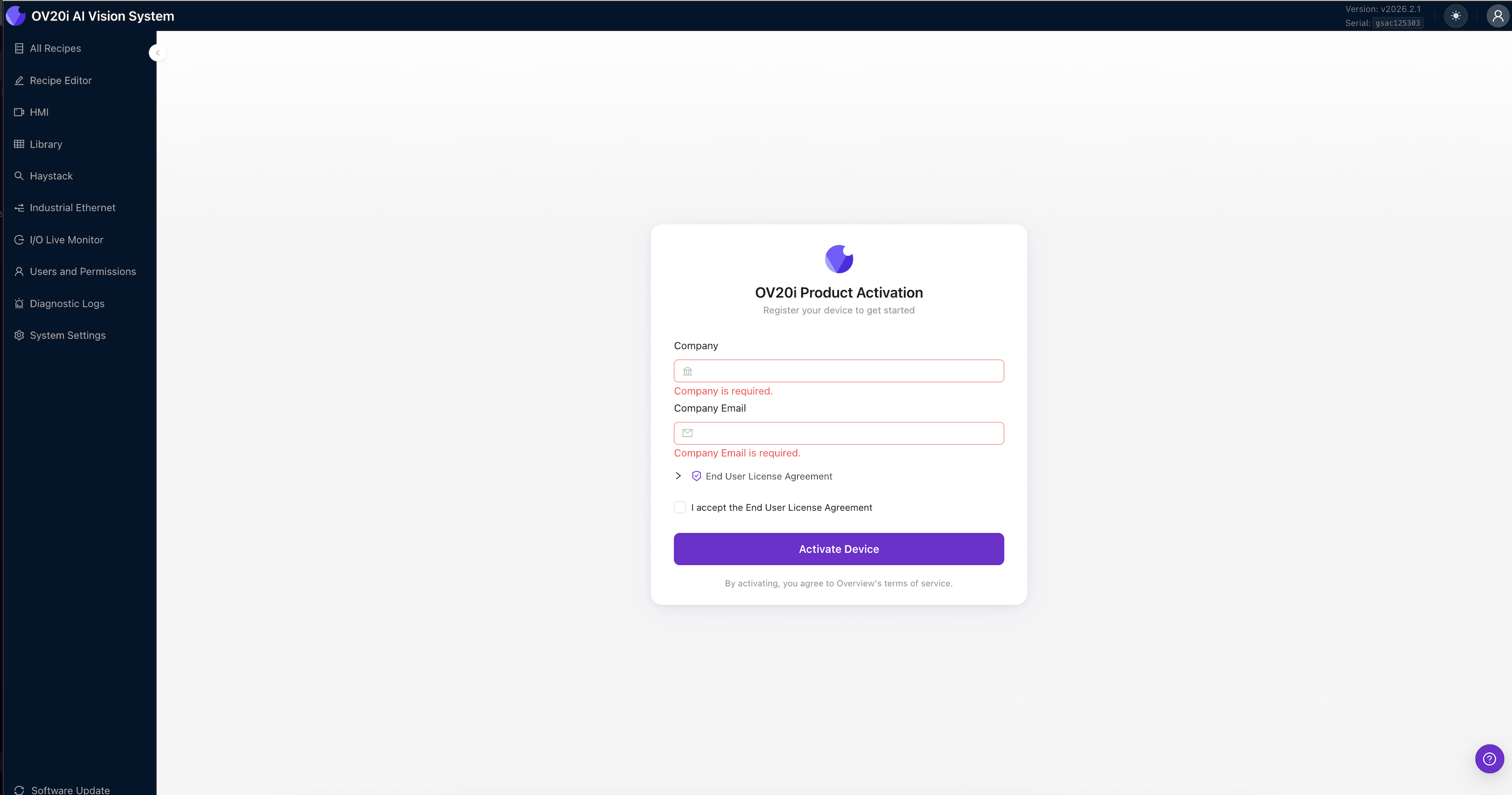
Once activated, you will see the camera's All Recipes page with a navigation sidebar on the left.
The camera runs entirely on your local network. You don't need internet access for activation, configuration, recipe creation, or running inspections.
Step 5: Activate a recipe
To start working with the camera, you need an active recipe. If you already have one, click Activate on it. If this is a fresh camera, click + New to create your first recipe.
Once a recipe is active, open it to reach the Recipe Editor, where you'll configure image settings, alignment, regions of interest (ROIs), and AI training.
Overview redesigned the OV20i web interface in v2026.5. Check your software version in the top-right corner of the camera UI, then pick the matching tab below. Your choice is remembered across every page in this setup flow.
- Older versions
- v2026.5 and newer
The All Recipes page lists your recipes. Click Activate on a recipe, then Edit to open the Recipe Editor. The editor groups everything into three sections: Imaging Setup, AI Blocks, and the IO Block.
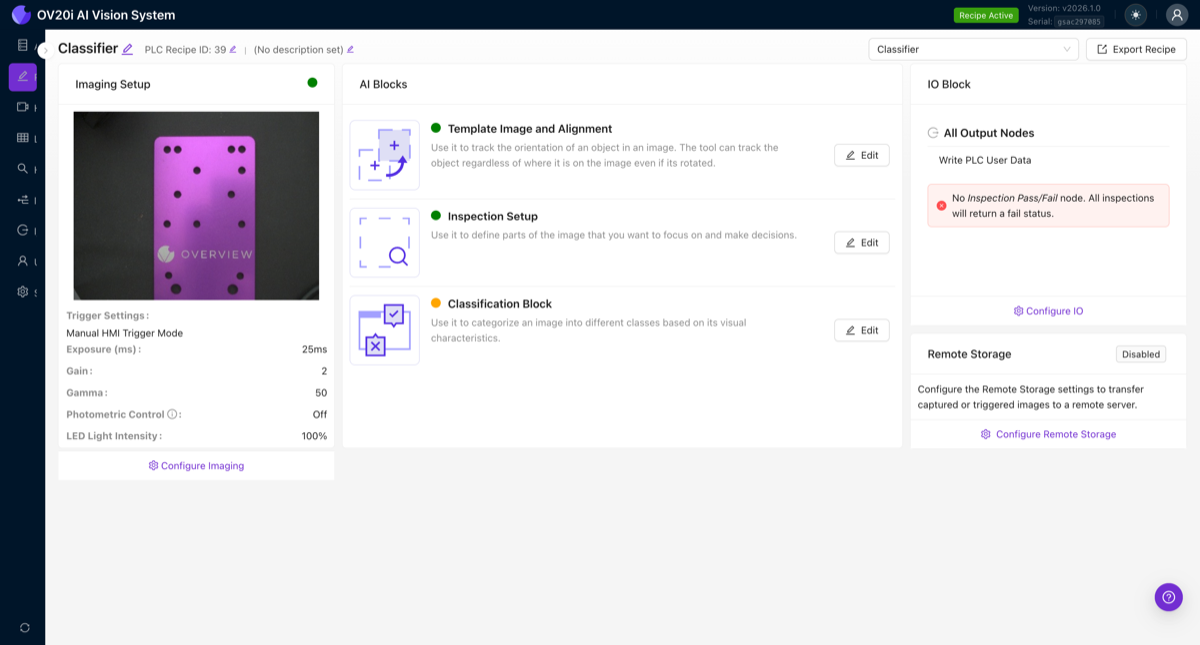
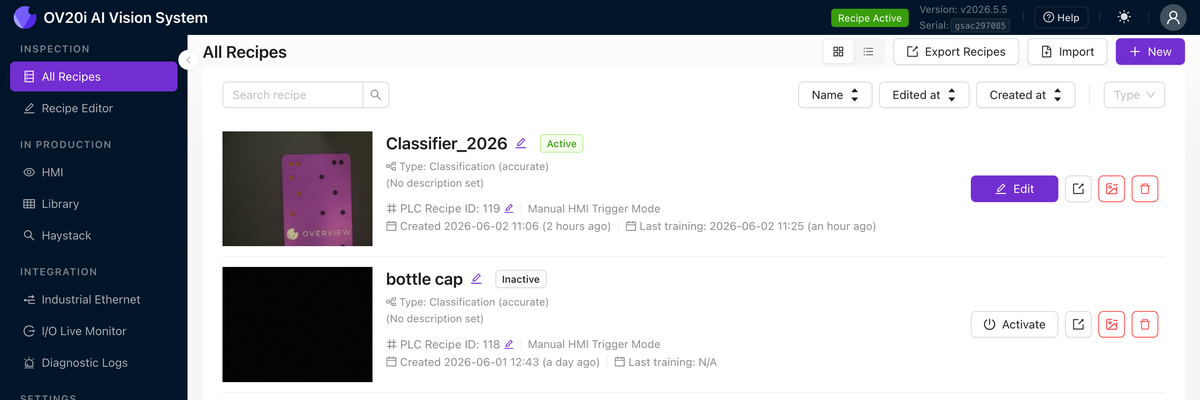
The All Recipes page is your home screen. Every recipe is a card showing its thumbnail, model type (Classification or Segmentation), PLC Recipe ID, trigger mode, and when it was created and last trained. The toolbar across the top gives you + New to create a recipe, Import and Export Recipes to move recipes between cameras, a search box, sort buttons (Name, Edited at, Created at), a Type filter, and a grid/list view toggle. On each card, Activate loads that recipe as the camera's running inspection, Edit opens it in the Recipe Editor, and the icon buttons export or delete it. The active recipe is marked Active and is also shown as Recipe Active in the top bar.
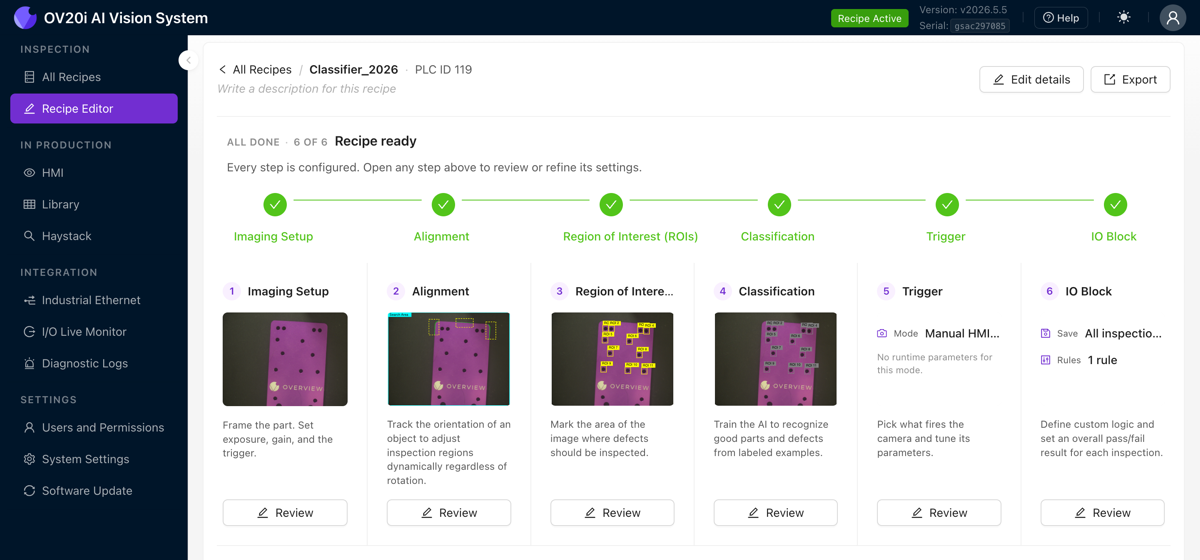
Clicking Edit opens the Recipe Editor on an overview screen. A progress tracker runs across the top, and below it is one card per step: Imaging Setup, Alignment, Region of Interest (ROIs), Classification (or Segmentation), Trigger, and IO Block. Each card shows a thumbnail preview and a one-line status, and a green check marks every step that is fully configured. The header tells you how many of the six are done (for example, "6 of 6, Recipe ready"). Click Review on any card, or a step in the tracker, to open it. Edit details renames the recipe and edits its description, and Export saves it to a file.
Work through the steps in order. Each one builds on the one before it (see the Waterfall Principle). Every step has Back and Next buttons at the bottom, so you can always return to an earlier step to fine-tune it without losing your place.
Next step: Head to Step 1: Image Settings to configure your camera's live image and verify everything looks right.
Troubleshooting connection issues
Common connection problems and fixes
| Problem | What to try |
|---|---|
| Can't reach camera IP | Verify your computer is on the same subnet (192.168.0.X). Try pinging ping 192.168.0.100 |
| Page loads but no image | Camera may still be booting. Wait 30 seconds and refresh |
| Page won't load at all | Try a different browser (Chrome recommended). Clear cache |
| Image is black | Check nothing is obstructing the lens. Verify lighting is on |
If you can't reach the camera over Ethernet, you can connect via USB. The emergency USB IP is 192.168.55.1.
For more detailed network troubleshooting, see Troubleshooting & FAQ.
Connection checklist
- Browser connects to camera IP (192.168.0.100)
- All Recipes page loads
- Recipe activated and Recipe Editor open
You're connected! Next up: Step 1: Image Settings to dial in your camera's image.