AI-POWERED DOCS
What do you want to know?
Software Update
Software Update installs new camera firmware. It is the most disruptive screen in the interface, and also one of the safest, because a failed update rolls itself back.
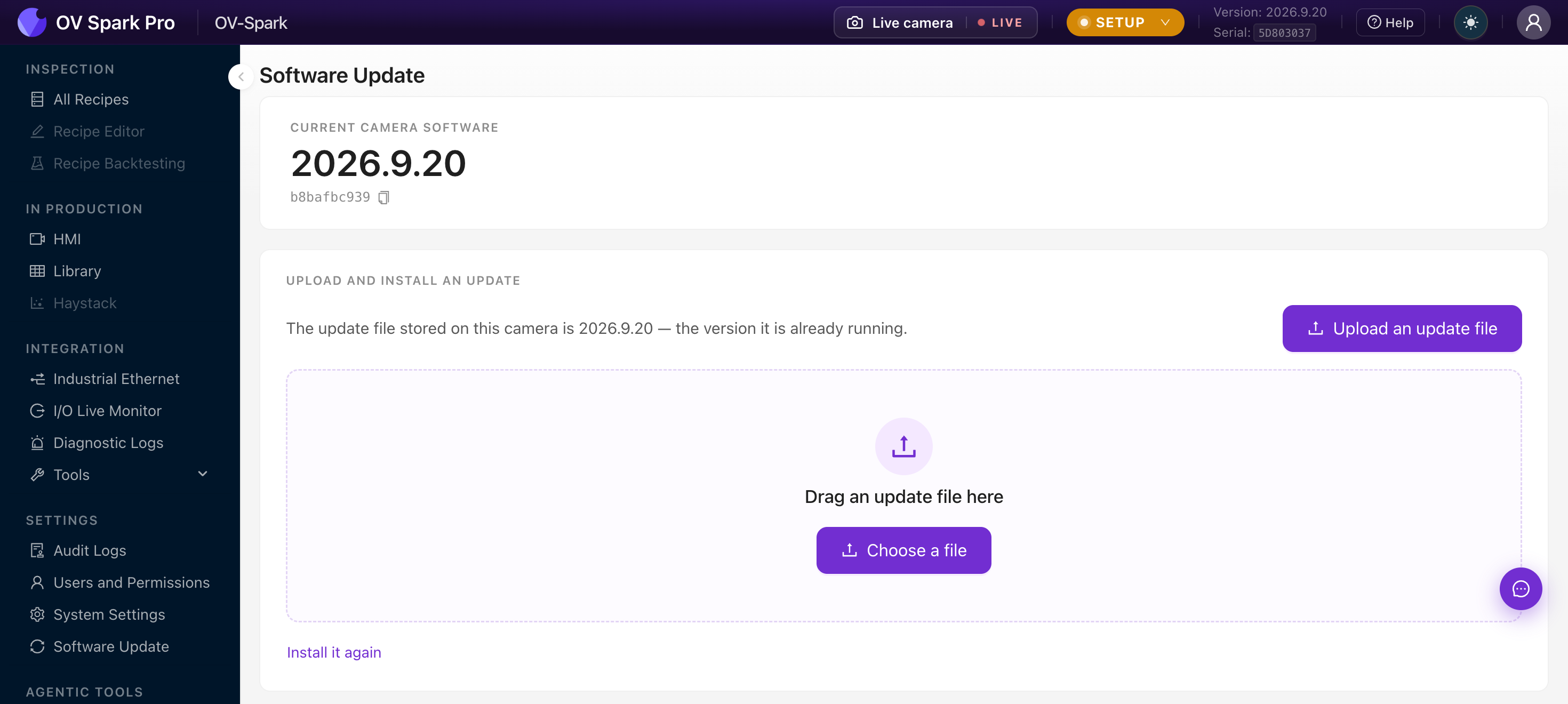
Check what you are running
The top card shows the current camera software version and its build id, with a copy button. Support will ask for both.
Get the latest update file
Update files come from the Overview update portal at updates.overview.ai. It takes four short steps:
- Email: enter your work email address
- Release: pick your camera under Hardware Version, then the release under Version
- Verify: enter the verification code sent to your email
- Download: save the
.ovupdatefile to the computer you use to reach the camera

The camera does not need internet access. Download the file wherever you have a connection, then carry it to a laptop that can reach the camera and upload it from there.
Install an update
- Upload an update file, or drag it onto the page. Only
.ovupdatefiles from the update portal are accepted - Wait for the upload. It is resumable, with Pause, Resume and Cancel, and an estimated time remaining
- Review what the camera tells you about the file
- Install and restart, and confirm
If your browser or the connection drops, the page reports where it stopped and picks the same file back up from that point. Nothing already sent is lost, which matters on a large file over plant Wi-Fi.
Read the warnings before you install
The panel checks the staged file and tells you plainly what installing it means:
| Message | What it means |
|---|---|
| Downgrade | The file is older than what is running. Allowed, and recorded in the audit log |
| Space | The camera may not have room. It checks again at install and stops if it cannot finish |
| Same version | The staged file matches what is already running, offered as Install it again |
Always shown: installing restarts the camera, and recipes and images are kept.
The camera restarts. Plan it into a changeover or a planned stop, and tell whoever is running the line.
While it installs
A modal steps through Preparing, Checking the file and Installing, with one standing instruction:
Don't power off the camera.
It restarts on its own and the page comes back by itself.
Afterwards
The camera does not simply trust that the new version works.
Checking: after restart it verifies the new version starts correctly. If anything fails it returns to the previous version on its own, usually in under a minute.
Auto-rollback: if the update did not start up, you get The camera went back to the version it was running before, and inspection resumed. Nothing was lost. There is a Copy details button, and that is what to send Overview support.
A failed update that rolls itself back has left you exactly where you started, with the line running. Report it, but do not treat it as an emergency.
Install rejected: the file was refused and the camera never restarted. Common reasons are no update file present, not enough free space, a timeout, or an install already in progress.
History
Recent activity lists update events in plain language, and Full history opens a drawer with Events and Raw log tabs.
Good practice
- Update one camera first and run it for a shift before rolling out to the rest
- Export your recipes from All Recipes before updating. Recipes are kept, but a tested backup costs nothing
- Note the build id before and after, so any regression can be pinned to a specific version
- Confirm the fieldbus still behaves afterwards using I/O Live Monitor