AI-POWERED DOCS
What do you want to know?
Download Logs
This page explains how to download system logs from the OV20i camera and send them to Overview support for debugging or issue resolution.
Where to Find Logs
- Go to the System Settings page from the left-hand toolbar
- Select the System Logs section
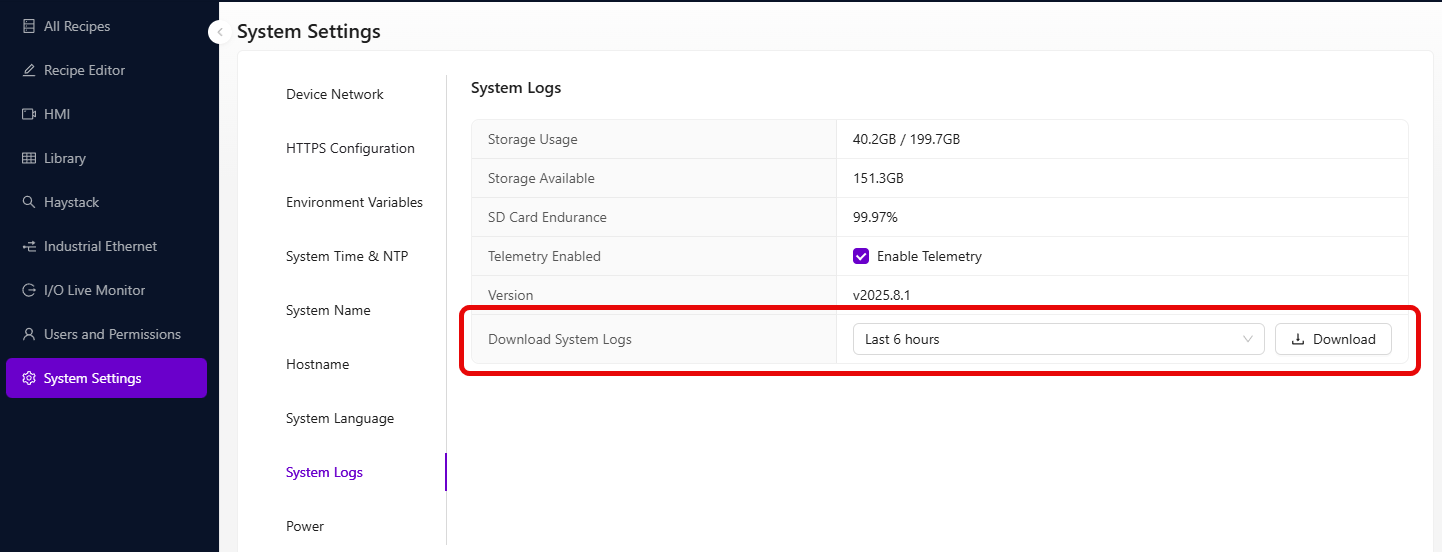
Choose Time Range
Select from the dropdown to specify how much history to include:
- Last 6 hours – Ideal for recent issues or short-term debugging
- Last 24 hours – Use if the issue happened earlier or intermittently
- Last 7 days
- Last month
Download and Send
-
Click the Download button
-
The system will generate a
.zipfile -
Attach the file in an email to:
-
Include any context or description of what went wrong
Best Practices
- Download logs as soon as possible after the issue occurs
- Add a timestamp or camera name in the email for clarity
- If reporting image issues, attach a screenshot or the image URL too
Analyze logs with AI before contacting support
After downloading your log package, upload the .zip file to the Log Analyzer for instant AI-powered diagnostics. It can identify common issues automatically, which may save you a support ticket.