AI-POWERED DOCS
What do you want to know?
All Recipes
All Recipes is where the camera opens, and it is the catalogue of every inspection this camera knows how to run. You come here to create a recipe, switch which one is running, or move a recipe to another camera.
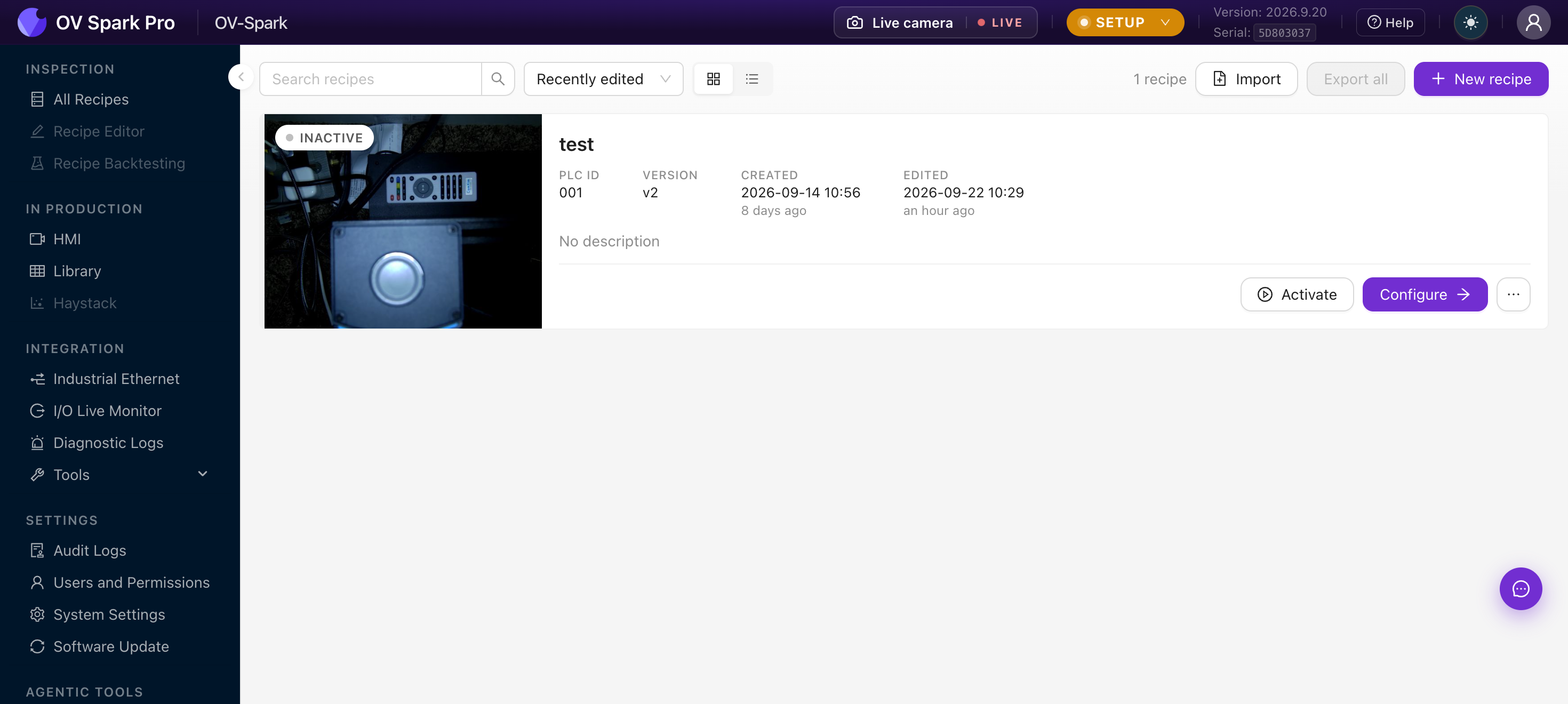
A recipe is either Active or Inactive. Activating one deactivates the other. If you run several products on the same line, you build a recipe per product and switch between them, either here or by recipe ID from the PLC.
Find a recipe
| Control | What it does |
|---|---|
| Search recipes | Filters by name as you type |
| Sort | Recently edited, Newest, or Name |
| View toggle | Switch between cards and a table |
The table view adds columns you cannot see on the cards: Status, Version, PLC recipe ID, Tags, Created and Edited. If you are trying to work out which recipe a controller is selecting, the table is the faster view.
Run a recipe
Each recipe has:
- Activate or Deactivate, which is what actually puts it on the line
- Configure, which opens it in the Recipe Editor
- An overflow menu with Edit details, Duplicate, Export and Delete
Duplicate is the safe way to try a change. Copy the running recipe, adjust the copy, validate it, then activate it. The original stays untouched as a fallback.
Deactivate it first. The camera blocks the delete while it is active rather than pulling the inspection out from under the line.
Move a recipe to another camera
Export produces a .ovbundle file. The modal asks what to include:
| Option | Use when |
|---|---|
| Recipe only | Deploying the same inspection to another camera |
| Recipe with historical data | Handing a problem to support, or preserving the training set |
| Runtime only | Distributing an inspection you do not want retrained downstream |
You can also limit captures to only failed inspections or to a recent count, and the modal estimates the file size before you commit.
Import is a four-step wizard: Choose file, Upload, Review, Import. The Review step is the one to read. It lists what the bundle contains and shows a Settings in this bundle table covering Sparky, Industrial Ethernet, HMI layout, Indicator LED, Remote storage, Data retention, Time zone and Web server, each with its own switch.
Those switches decide whether the source camera's settings overwrite this one's. Fieldbus configuration and data retention in particular are easy to import by accident. Review that table rather than accepting it wholesale.
A recipe imported from a runtime-only bundle is marked Runtime only, and its tools cannot be retrained on this camera.
A recipe only imports onto a camera with the same capture resolution. An OV Spark recipe (1280×960) will not import onto an OV Spark Pro (2592×1944), or the other way round, because regions and templates are stored in sensor pixels and are never rescaled. The import screen names the mismatch. Build the recipe on the model it will run on.
Every exported bundle carries the camera's settings, including FTP, SFTP and SMB passwords in plain text. Store and share bundles as you would a credentials file.
Back up recipes automatically
Rather than exporting by hand, the camera can back up every recipe, or only the active one, to your own server daily or weekly. Set it up under Remote Storage.
Who can do what
Operators and read-only users can see the list but get no action buttons. Creating, activating, importing and deleting all require Engineer or Admin.