AI-POWERED DOCS
What do you want to know?
Scriptable Integration
From firmware 2026.10.30, OV Spark Pro can take data in from your line, decide with your own logic, and send results out in your own format, all on the camera. There are four pieces, and most setups use only one or two of them:
| Piece | What it is | Code? |
|---|---|---|
| Variables | Values that come in from outside, such as a serial or lot number from the PLC or MQTT. Every capture saves the values it ran with | No |
| Recipe script | JavaScript on the Judgment step that decides pass or fail with a reason, adds metadata and tags, and writes your own bytes for the PLC | Yes |
| Camera script | One camera-wide script that publishes to MQTT, reacts to incoming messages, and keeps counters and alerts | Yes |
| MQTT | A built-in MQTT client. Once a broker is set up, every inspection result is published, with no script at all | No |
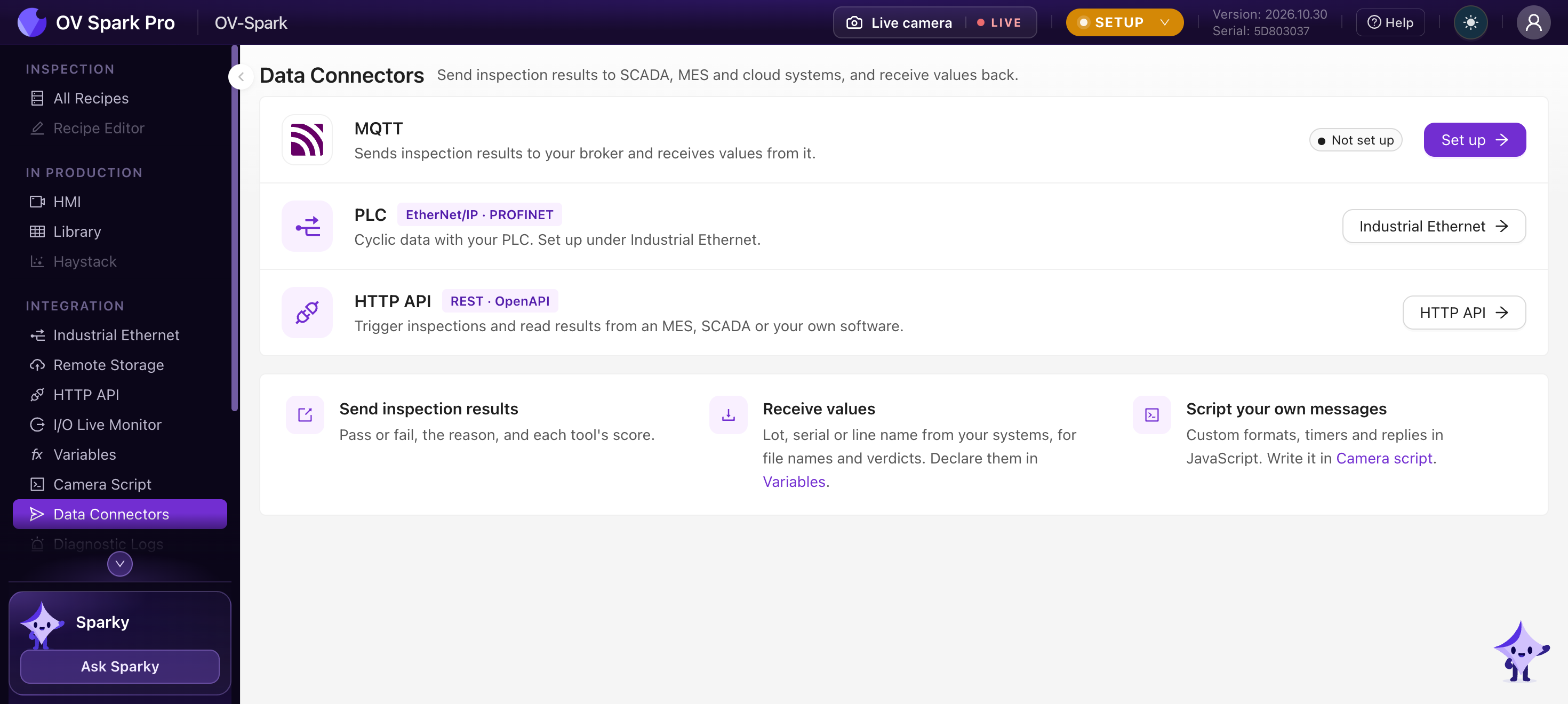
They live under Integration in the camera's left-hand navigation: Variables, Camera Script and Data Connectors. The recipe script is on the Judgment step of each recipe.
Recipe script or camera script
| Recipe script | Camera script | |
|---|---|---|
| Belongs to | One recipe, and is exported with it | The camera, and keeps running across recipe changeovers |
| Runs | On every inspection, after the tools and before the PLC sees the result | When something happens: a result, an MQTT message, a PLC User Data change, a timer |
| Memory | No reliable memory: treat each inspection as starting fresh | Keeps state between events until it reloads |
| Time limit | 25 ms by default, up to 200 ms | 1 second to a hook's first await, then 50 ms for each part after |
| Can | Set pass or fail and the reason, write PLC User Results bytes, add metadata and tags | Publish MQTT, set variables, raise alerts, run timers |
| Can't | Use the network, keep state, use timers | Change a verdict, write PLC bytes, edit a finished capture |
If the PLC needs it when Inspection Completed goes high, it goes in the recipe script. If it goes over the network, or has to remember something across parts, it goes in the camera script.
The two connect through variables: the camera script sets a variable, the recipe script reads it, and the value is saved with the capture, so you can always see what a decision was based on.
Common setups
| You want to | Use |
|---|---|
| Save the serial or barcode the PLC sends with every image | A variable on PLC User Data. No code: every capture stores it, the Library shows it, and Remote Storage file names can use it, for example {camera}/{var.lot} for the folder and {var.serial}_{capture_id} as the file name |
| Check the part against what the PLC expects | A recipe script that compares the OCR text or barcode with the serial variable and fails with serial differs. The same idea works for a count against the order quantity |
| Take data from MES or another system | A variable bound to an MQTT topic and JSON field, or a camera script that picks a field out of a vendor's message and sets the variable |
| Let an operator enter the lot number | Set the variable by hand on the Variables page. Captures that used a hand-entered value get a manual badge. This is also how you test a script on the bench without a PLC |
| Find captures later by lot, or by how close they came to failing | A recipe script that saves values as metadata and tags captures, such as near-miss or review |
| Send your own data to the PLC | A recipe script that packs a count, one bit per region, or a code per tool into User Results with pack() |
| Run different checks per model | The PLC sends the part type; the recipe script marks other part types Not inspected, or turns a check on or off |
| Use your own pass logic | For example, pass when at least 78 of 80 regions pass, or put the name of the failing tool in the reason |
| Not inspect a part when data is missing or stale | A recipe script that returns Not inspected when the serial has not arrived, or when the PLC's last value is too old |
| Publish every result | Nothing to write: with a broker set up under Data Connectors, every result and a heartbeat go to MQTT. Use the camera script for your own topic or message format |
| Monitor the line | A camera script that raises an alert after N rejects in a row, publishes pass and fail counts per shift as CSV, or publishes a heartbeat |
| Answer requests over MQTT | A camera script that answers requests such as last result or value of a variable |
Each setup above that uses a script has a ready-made template in the script editor's Templates gallery.
The script workbench
Both scripts are written in the same editor on the camera, with:
- Templates: working examples for each job above. Pick one and fill in the tool or variable it uses
- Autocomplete and a Reference panel that documents every hook, global and type, with short guides
- Test against the live camera or recent captures, so you no longer switch between the HMI and the script tab
- History: your last 20 saved versions, to compare or go back to
- Test runs the draft on a live trigger or on stored captures (the latest, the last N up to 500, a Library filter, or capture numbers). For the camera script it is a dry run that replays recent results without sending anything
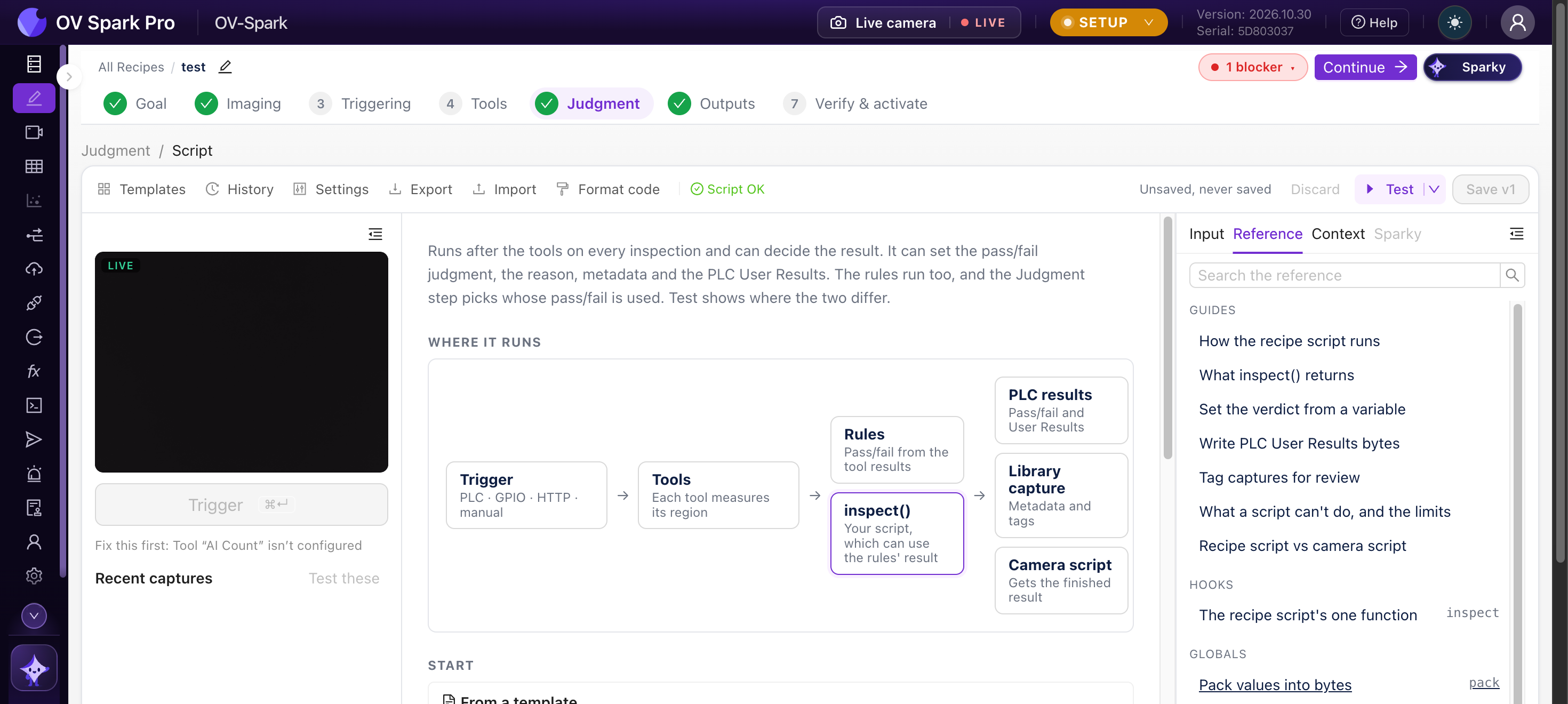
A recipe script that throws or runs out of time makes the part Not inspected and zeroes the PLC User Results. Run Test with a failing part as well as a good one before you save, and keep the script short: its time adds to every cycle.
Good to know
- Variables, scripts and MQTT settings travel with recipe exports. Passwords and certificates are not exported: if the source used credentials the target doesn't have, MQTT arrives switched off; otherwise it keeps the source's setting
- The HTTP API now returns results in the same format as MQTT and the scripts. If you integrated against 2026.10.13, see the field changes on that page
- Not there yet: triggering an inspection or switching recipes from the camera script (the PLC and HTTP still do that), TCP and OPC-UA, and an HMI widget to show or set a variable
Where to go next
- Variables
- Recipe script, with a playground you can try in the browser
- Camera script
- MQTT