AI-POWERED DOCS
What do you want to know?
MQTT
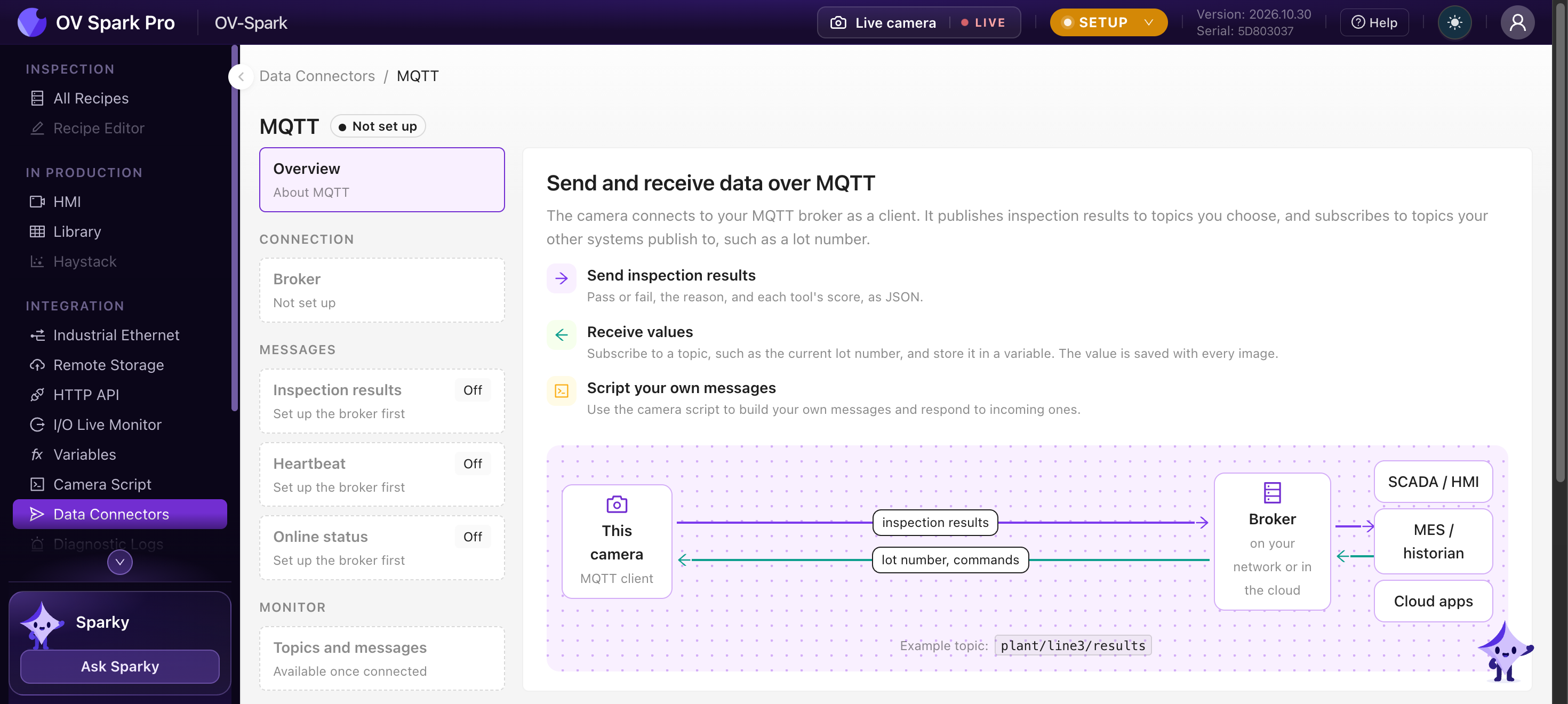
OV Spark Pro has a built-in MQTT client. It connects to your broker, on your network or in the cloud, and:
- publishes every inspection result as JSON, with no script at all
- publishes a heartbeat and its online status
- receives values, such as the current lot number, into variables
It supports MQTT 3.1.1 and 5, with plain TCP, TLS or mutual TLS (client certificates).
Open Integration > Data Connectors and choose MQTT.
Set it up
Setup has three steps.
1. Connect to the broker
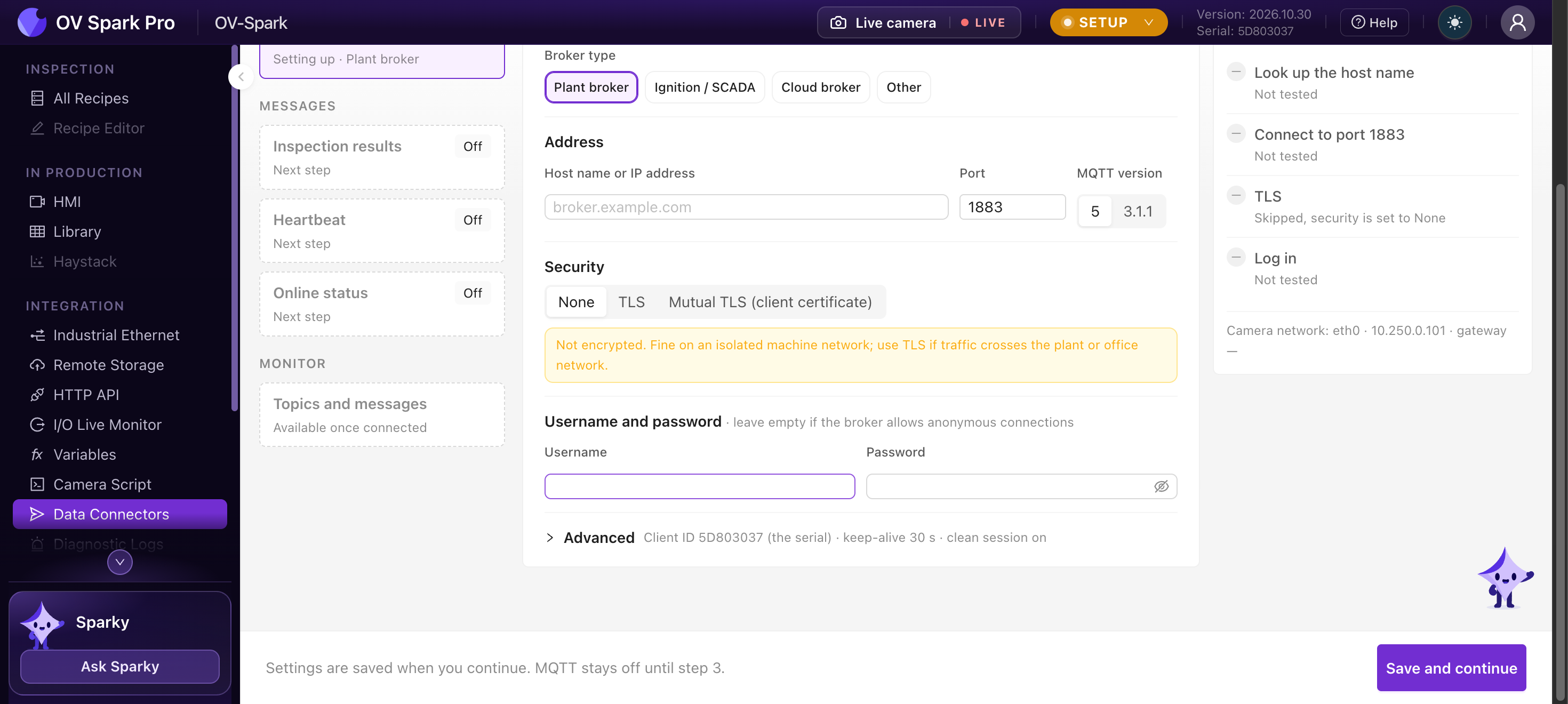
Pick the kind of broker to fill in typical settings, which you can change:
| Broker type | Typical |
|---|---|
| Plant broker (Mosquitto, HiveMQ, EMQX) | Port 1883, or 8883 with TLS |
| Ignition / SCADA (Ignition MQTT Distributor and similar) | Port 1883 |
| Cloud broker (AWS IoT, Azure, HiveMQ Cloud and similar) | Port 8883 with TLS |
| Something else | Any MQTT 3.1.1 or 5 broker; you set every field |
| Setting | Notes |
|---|---|
| Address and Port | The broker's host name or IP address. Default port 1883 |
| MQTT version | 5 (default) or 3.1.1 |
| Security | None, TLS, or Mutual TLS (client certificate). TLS without a CA certificate uses the camera's built-in trust store; mutual TLS needs a CA, a client certificate and a client key |
| Username and password | Leave empty if the broker allows anonymous connections |
| Advanced | Client ID (the camera's serial by default), keep-alive (30 s) and clean session (on) |
The connection check runs a second after you stop typing: it looks up the host name, connects to the port, checks TLS and logs in, one step at a time. Settings are saved when you press Save and continue at each step, and MQTT stays off until step 3.
None sends everything unencrypted, including the password. That is fine on an isolated machine network. Use TLS if the traffic crosses the plant or office network, and mutual TLS for cloud brokers that require client certificates.
2. Choose what to send
| Message | Default topic | Notes |
|---|---|---|
| Inspection results | overview/<serial>/results | One message per production inspection, at the QoS you choose (1 by default). Summary leaves out each tool's detail; Full includes it |
| Heartbeat | overview/<serial>/heartbeat | Every N seconds (5 or more, or off), at QoS 0 |
| Online status | overview/<serial>/status | A retained {"status":"online"}, and a last-will {"status":"offline"} the broker sends if the camera drops off |
You can change each topic, for example to plant/line3/results.
3. Turn on MQTT
Turn MQTT on, then watch every message go out under Monitor > Topics and messages.
Result messages are published with retain off, so a subscriber that connects later does not receive an old result as if it were new. To keep the last result available, publish it yourself from the camera script with retain: true, or read it from the HTTP API.
What a result message looks like
The same document is used by MQTT, the HTTP API and the camera script's onResult. A Full result, shortened:
{
  "schema_version": 1,
  "serial": "5F9FE801",
  "id": "01a17216-f035-7ec5-adae-b90b6a0868a8",
  "recipe": { "id": 3, "name": "Kit tray" },
  "trigger": { "id": 420596, "source": "plc" },
  "image": { "width": 2592, "height": 1944, "url": "/api/integration/v1/results/01a17216-f035-7ec5-adae-b90b6a0868a8/image" },
  "captured_at": "2026-10-25T08:04:28.341Z",
  "processing_ms": 82,
  "judgment": "fail",
  "pass": false,
  "not_inspected": false,
  "reason": "serial differs",
  "judgment_source": "script",
  "rules": { "judgment": "pass", "pass": true, "not_inspected": false },
  "vars": { "serial": "SN-24-118734" },
  "tools": [
    {
      "id": "01a15f8b-da07-7e42-8b3e-d3edaff79428",
      "type": "classical.barcode",
      "name": "Label",
      "plc_slot": 1,
      "judgment": "pass",
      "score": 1,
      "execute_ms": 4,
      "detail": { "decoded": true, "data": "0104012345678901", "symbology": "data_matrix" }
    }
  ],
  "metadata": {},
  "tags": [],
  "plc_inspection_id": 1234,
  "phase": "production"
}
judgment_sourcesays what decided the verdict: the rules, the recipe script, orscript_errorwhen the script failedrulesis the rules' verdict, even when the script decidedvarsholds the variables the inspection savedimage.urlfetches the image over the HTTP API
The heartbeat is small:
{"schema_version":1,"serial":"5F9FE801","hostname":"line3-cam","recipe":"Kit tray","phase":"production","uptime_s":3600,"mqtt":"connected","ts":"2026-10-25T08:04:28.341Z"}
Receive values
To bring a value in, declare a variable with MQTT as its source: the topic, and for JSON the path to the field. Every inspection then saves the latest value. For anything more involved, such as picking a field out of a vendor's message or answering requests, use the camera script.
MQTT settings travel with recipe exports, but passwords and certificates are never exported. If the source camera used credentials the target camera does not have, MQTT arrives switched off. Otherwise it keeps the source's on or off setting, so an import onto a camera that can reach an anonymous broker can start publishing straight away. Check Data Connectors after every import.
Where to go next
- Camera script, for your own topics and message formats
- Variables
- HTTP API