AI-POWERED DOCS
What do you want to know?
HTTP API
The HTTP API lets an MES, a SCADA system or your own software work with the camera directly over the network, with or without a PLC. From the API you can:
- Trigger an inspection and get its result in the same call
- Read past results, or follow them live as they finish, with their images, heatmaps and segmentation masks
- List recipes and switch the active one
- Switch between Setup and run mode
- Read and reset the pass/fail counters
Go to Integration → HTTP API:
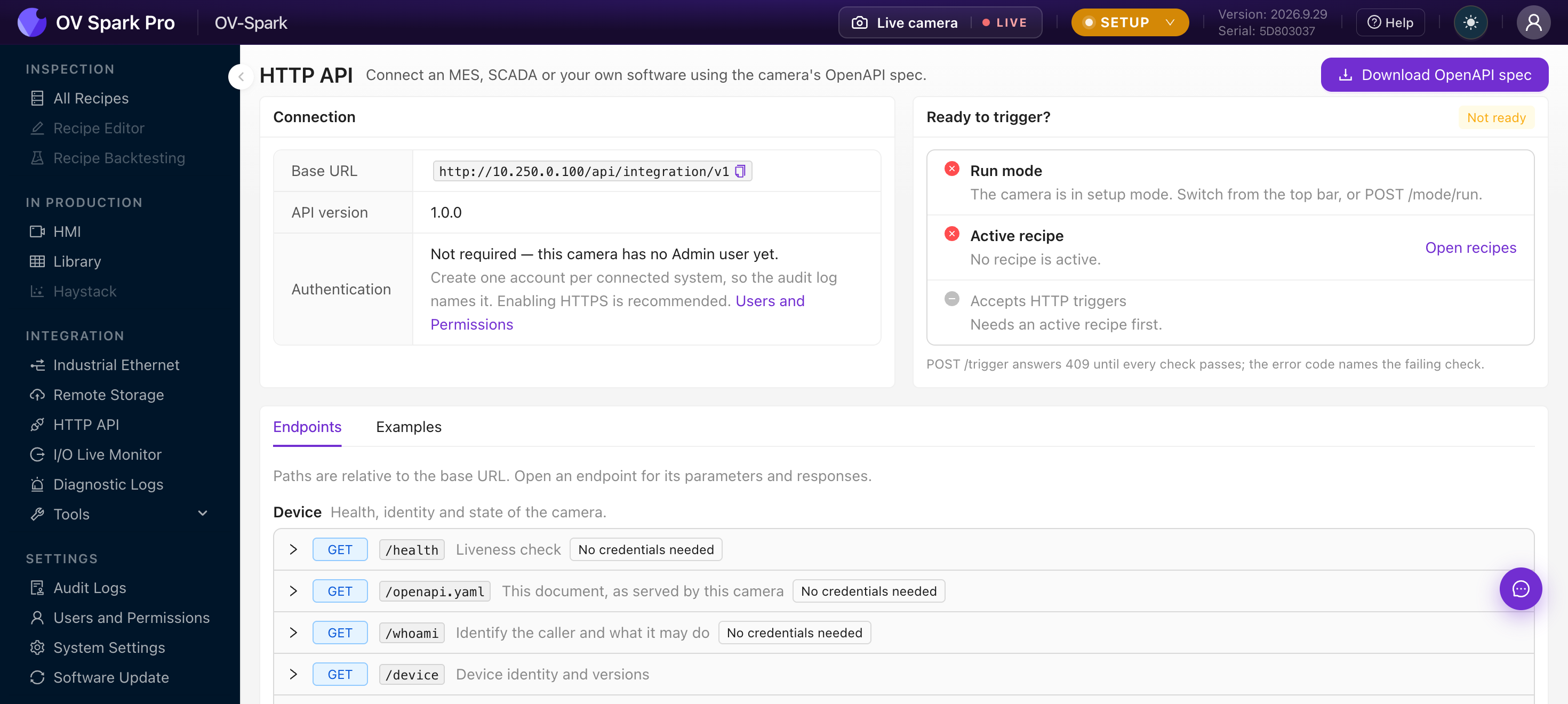
| Area | What it gives you |
|---|---|
| Connection | The Base URL every call starts with, for example http://10.250.0.100/api/integration/v1, the API version, and whether calls need a username and password |
| Download OpenAPI spec | A machine-readable description of every endpoint, with its parameters and responses. Give it to your developers, or load it into Postman or any OpenAPI tool |
| Ready to trigger? | A live checklist of what must be true before POST /trigger will work |
| Endpoints and Examples | Every endpoint, grouped by what it does, and copy-ready example calls |
Before the first trigger
The Ready to trigger? panel checks three things. POST /trigger is refused until all three pass, and the error names the one that failed.
- Run mode. Switch the camera out of Setup from the top bar, or call
POST /mode/run. - Active recipe. A recipe must be active. Activate one from All Recipes, or call
POST /recipes/{id}/activate. - Accepts HTTP triggers. In the active recipe, open Step 2: Triggering, choose External, and tick HTTP under Enabled sources.
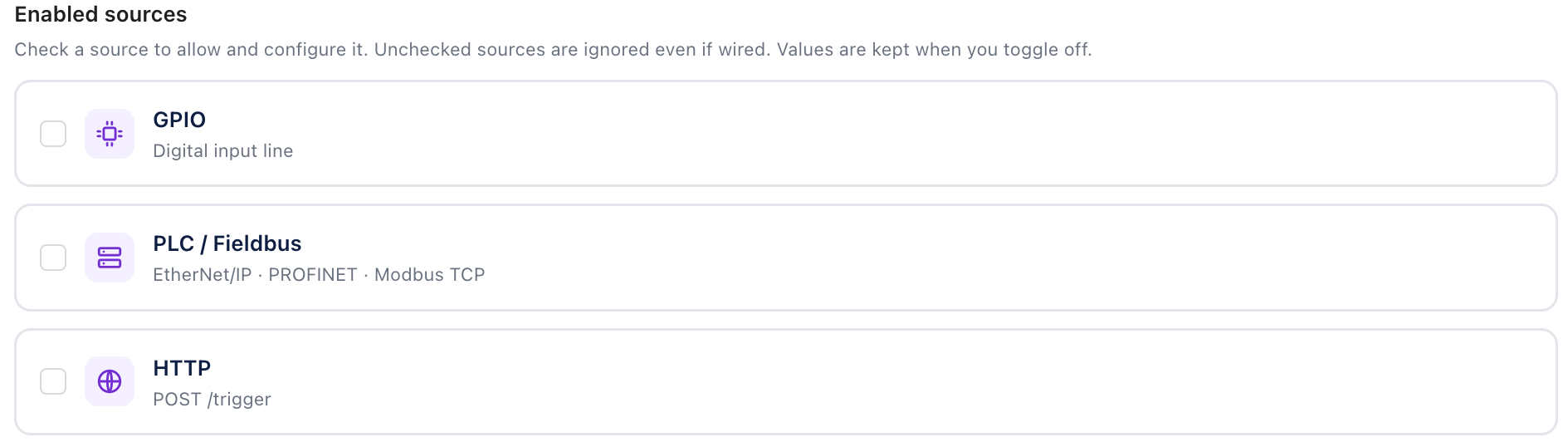
You can tick more than one source. A recipe can accept a hardware trigger on the line and an HTTP trigger from your software at the same time. A source that is not ticked is ignored, even if something is sending to it.
Trigger an inspection
curl -X POST http://10.250.0.100/api/integration/v1/trigger \
  -H "Content-Type: application/json" \
  -d '{"wait_ms": 5000}'
The call waits up to wait_ms milliseconds (5000 by default, up to 30000) for the inspection to finish:
| Response | Meaning | What to do |
|---|---|---|
| 200 | The finished result | Read judgment: pass, fail or not_inspected |
| 202 | Accepted, but not finished within wait_ms | Poll GET /results?trigger_id= with the trigger_id it returned |
| 409 | The camera is not ready | Fix what code names: run mode, active recipe, or the HTTP source |
| 503 | A temporary condition, such as an inspection still running | Retry |
The camera inspects one trigger at a time. A trigger sent while the previous one is still running is refused with 503, unless the recipe's Image trigger buffer allows it to wait. Send the next trigger after the previous response arrives.
not_inspected means every inspection tool was skipped, usually because alignment did not find the part. Nothing was checked, so handle it as a reject, never as a pass.
Read results
| Call | Returns |
|---|---|
GET /results/latest | The most recent result |
GET /results | Results, newest first, filterable by recipe or trigger |
GET /results/{id} | One result, with each tool's verdict |
GET /results/{id}/image | The inspected image, as a JPEG |
GET /results/{id}/tools/{tool_id}/heatmap | The heatmap of one region, as a PNG |
GET /results/{id}/tools/{tool_id}/mask | The segmentation mask of one region, as a PNG |
GET /results/stream | A live stream of results as they finish, from every trigger source |
GET /results/stream uses Server-Sent Events: keep one connection open and each finished inspection arrives as it happens, whether it was triggered over HTTP, by a PLC or by a sensor. That is usually simpler than polling.
Each tool reports ok, ng, indeterminate or not_applicable, and the result as a whole reports pass, fail or not_inspected.
Other calls
| Group | Calls |
|---|---|
| Device | GET /health, GET /device, GET /status, GET /whoami, GET /openapi.yaml |
| Recipes | GET /recipes, GET /recipes/active, POST /recipes/{id}/activate |
| Statistics | GET /statistics, POST /statistics/reset, GET /statistics/stream |
| Control | POST /mode/run, POST /mode/setup |
| Fieldbus | GET /fieldbus, GET /fieldbus/descriptor (the EDS or GSDML file for the active protocol) |
A recipe is identified by its number, the same PLC recipe ID a PLC uses to select it, set on Step 5: Outputs.
After POST /mode/run, poll GET /status until mode is run and mode_changing is false before you trigger. Switching mode takes a moment while the recipe loads.
Sign-in and security
While the camera has no Admin user, the API needs no credentials. Once an Admin exists, every call except /health, /whoami and /openapi.yaml needs the username and password of a camera account, sent as HTTP Basic authentication:
curl -u line3-mes:PASSWORD http://10.250.0.100/api/integration/v1/results/latest
Create one account per system in Users and Permissions, so the Audit Logs show which system did what. Give it the lowest role that does the job; GET /whoami with that account's credentials lists exactly what it is allowed to call. Turn on HTTPS in System Settings so passwords do not cross the network in clear text.
The API only grows within /api/integration/v1: new endpoints and fields can appear, but existing ones never change meaning or disappear. Code written against it today keeps working after a firmware update.
Where to go next
- Step 2: Triggering, to enable the HTTP source
- Users and Permissions, to create an account for each system
- Industrial Ethernet, if a PLC is involved too
- Remote Storage, to send images and results to a file server instead