AI-POWERED DOCS
What do you want to know?
System Settings
System Settings holds everything about the camera as a device rather than as an inspection: its identity, its place on the network, its clock, how long it keeps data, and how it is secured.
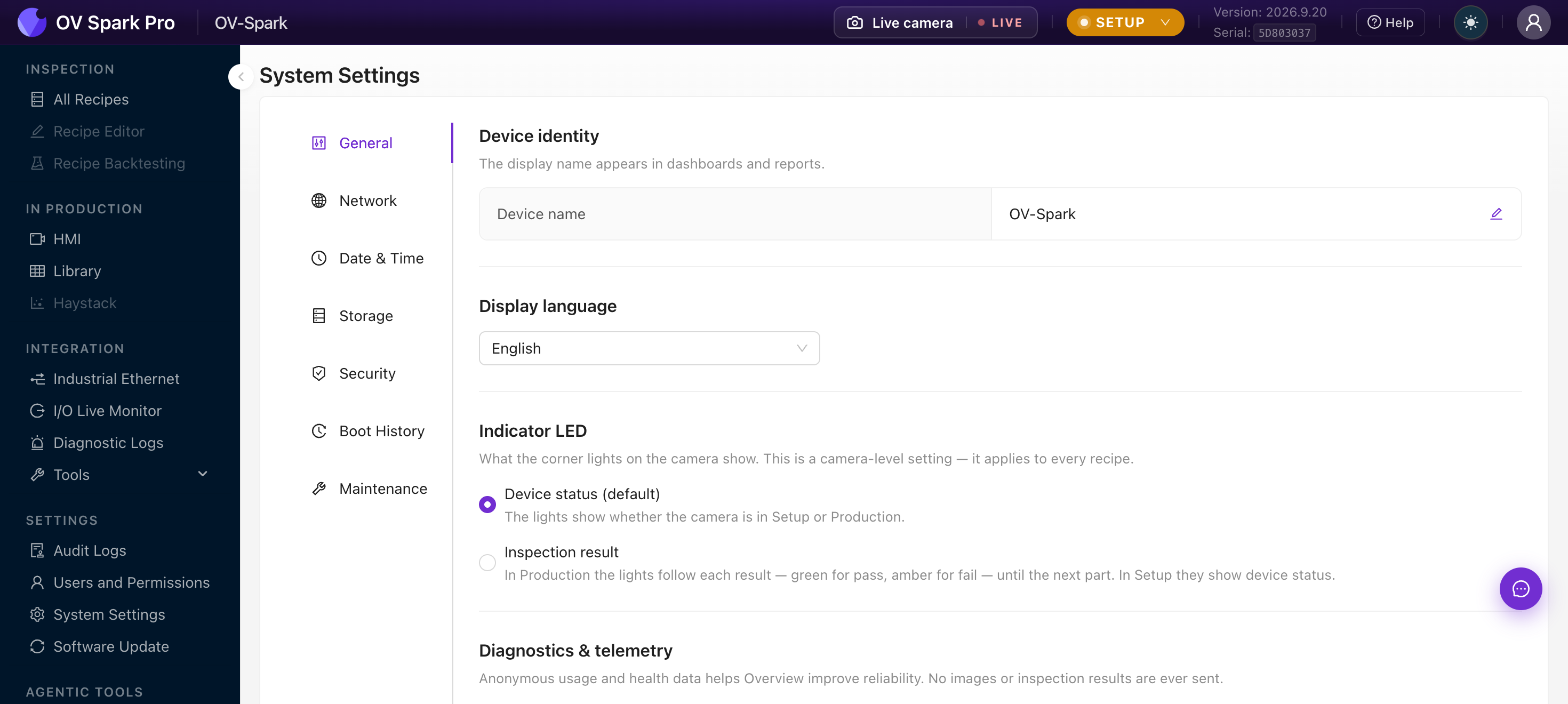
Seven tabs, and the active one appears in the address bar so you can link a colleague straight to it.
General
Device Name, display language, the Indicator LED, and a Enable Telemetry switch.
The device name is what appears in the header and in exports. On a plant with several cameras, name it after the cell or the station rather than leaving the default, because it is the label you will see in audit exports and bundle imports later.
Network
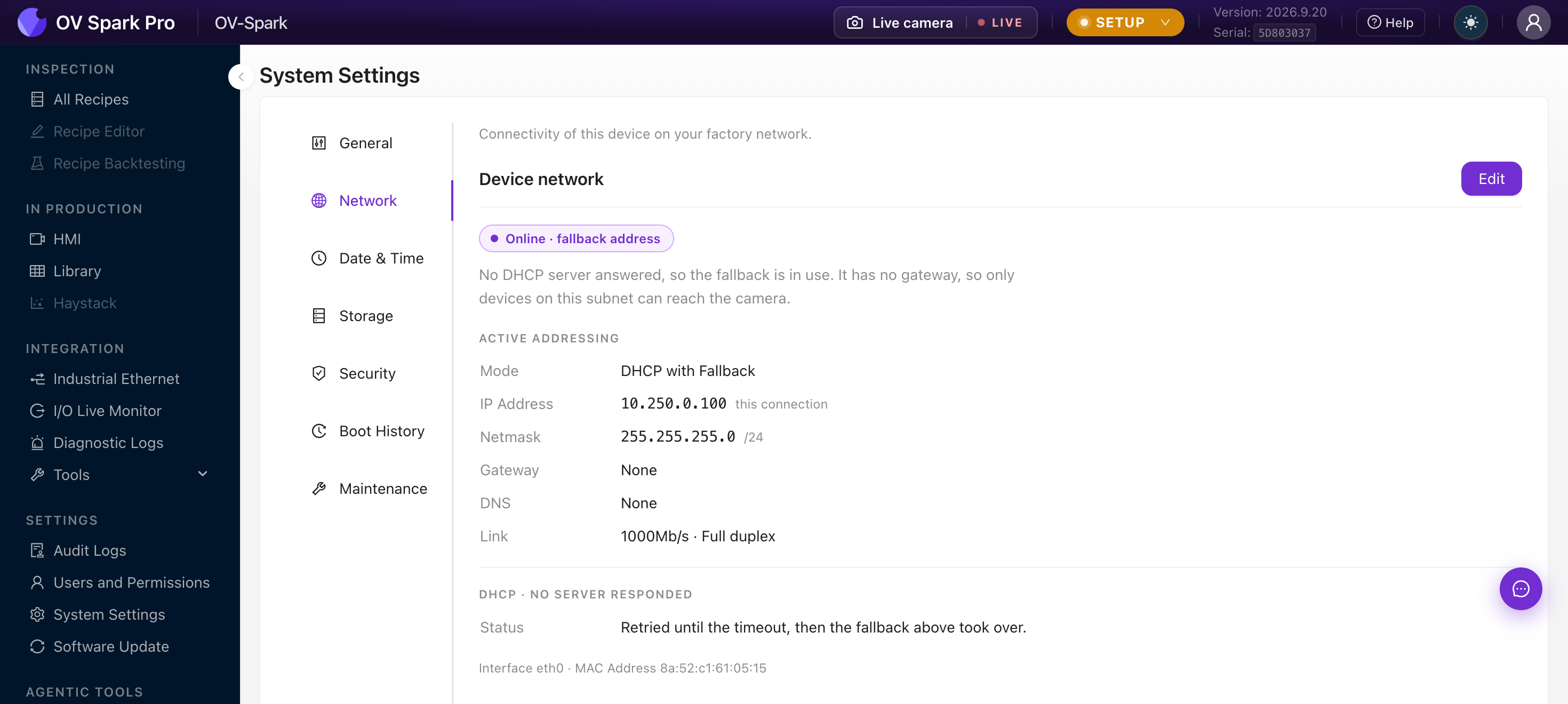
IP configuration, gateway, and the device hostname.
Switch the camera to Setup first. This is deliberate, since a hostname change mid-production would drop connections.
An Internet Sharing card appears for Engineers and Admins only.
Date & Time
Shows Camera Time against Your Computer Time, with an Enable NTP switch and a Sync to Computer action.
Synchronising to your computer clock disables NTP. On a plant network, NTP against a local time server is almost always the better answer, because capture timestamps, audit entries and certificate validity all depend on the clock being right.
Set the Time zone too. Times display in your browser's local zone, but the camera uses its configured zone for capture timestamps and log entries.
Storage
Two things live here, and both matter more than they look.
Capture retention
Which captures keep their image. A capture without an image still records its result and metadata.
| Policy | Keeps |
|---|---|
| All captures | Every image |
| Failed captures only | Everything except clean passes. Fails, errors and unjudged captures always keep their image |
| Failed captures + sampled passes | The above, plus 1 in every N passes |
Failed captures + sampled passes is the setting most lines want. Failures are what you investigate, but a regular sample of passes is what lets you prove the camera was working and gives you balanced training data later.
Storage usage
Images, database, free space, pinned count and oldest capture.
The camera deletes the oldest unpinned captures automatically as new ones arrive. Seeing the disk near full is expected behaviour, not a fault. Pinned captures are never deleted, which is why pinning is the way to keep anything that matters.
Security
Enable HTTPS and certificate management: add a certificate with a name, type, common name and file, then view, activate, download or delete it.
Rules the camera enforces: an active certificate cannot be deleted, and an expired certificate cannot be activated. Expiry warnings appear in advance, and activating a certificate restarts the camera.
The camera warns before expiry, but renewal restarts the device. Schedule it with a planned stop rather than discovering it mid-shift.
Boot History
A read-only table of every recorded start. Useful for spotting unexplained restarts, which often point at power quality rather than software.
Maintenance
About this device, covering model, device ID, serial numbers, firmware version and provisioning state. Quote these to support.
System logs exports the raw logs for a chosen period, from the last 6 hours up to the last month.
Then, for Admins and Engineers, the destructive actions:
Restart reboots the camera.
It permanently deletes all users and passwords, recipes and inspection tools, trained models, captures and datasets, device name and settings, the audit log, and the HTTPS certificate.
It keeps only the firmware version, network settings, MAC address and serial number.
There is no undo and no backup taken for you. Export your recipes first, from All Recipes, and be certain the bundle actually downloaded before you proceed.
Where to go next
- Users and Permissions
- Software Update
- All Recipes, for exporting before a reset