AI 驱动文档
您想了解什么?
连接到 Tulip
Tulip 是一个无代码 MES / 互联一线运营平台。OV20i 相机通过运行在相机上的 Node-RED 桥接到 Tulip — 这与您用于 PLC、MQTT 和其他 I/O 集成的流程编辑器相同。Tulip 可以:
- 通过操作员按钮或应用事件触发检测。
- 接收每个 ROI 和全局的通过/失败结果以及捕获元数据。
- 当操作员扫描零件条形码或选择不同产品时,切换活动程序。
- 在 Tulip 应用程序内显示实时图像(带边界框叠加),让操作员看到 AI 所看到的内容。
本指南将端到端地介绍这四个集成点中的每一个。
架构
┌────────────────────────────┐               ┌──────────────────────────────┐
│            TULIP           │               │           OV20i              │
│                            │               │                              │
│  ┌──────────────────┐      │   HTTP/MQTT   │   ┌──────────────────────┐   │
│  │ Operator Button  │──────┼───trigger─────┼──▶│ Node-RED HTTP IN     │──▶│
│  │ in Tulip App     │      │               │   │ /trigger             │   │
│  └──────────────────┘      │               │   └──────────────────────┘   │
│                            │               │              │               │
│  ┌──────────────────┐      │               │              ▼               │
│  │ Tulip Connector  │◀─────┼─── results ───┼─── All Block Outputs         │
│  │ Function (HTTP)  │      │               │   (image_url, pass/fail,     │
│  └──────────────────┘      │               │    per-ROI classes)          │
│                            │               │              │               │
│  ┌──────────────────┐      │               │              ▼               │
│  │ Image Widget     │◀─────┼── live-feed ──┼─── http://CAMERA_IP/live-feed│
│  │ (iframe URL)     │      │  (HMI w/ ROI  │   (shows bounding boxes      │
│  └──────────────────┘      │    overlays)  │    on the captured image)    │
│                            │               │                              │
│  ┌──────────────────┐      │               │   ┌──────────────────────┐   │
│  │ Recipe Selector  │──────┼─── HTTP ──────┼──▶│ /pipeline/activate   │   │
│  │ (barcode / btn)  │      │               │   │ {id: <recipe_id>}    │   │
│  └──────────────────┘      │               │   └──────────────────────┘   │
└────────────────────────────┘               └──────────────────────────────┘
中间的桥梁始终是运行在相机 IO模块 内部的 Node-RED — 这是您构建所有四个集成的地方。
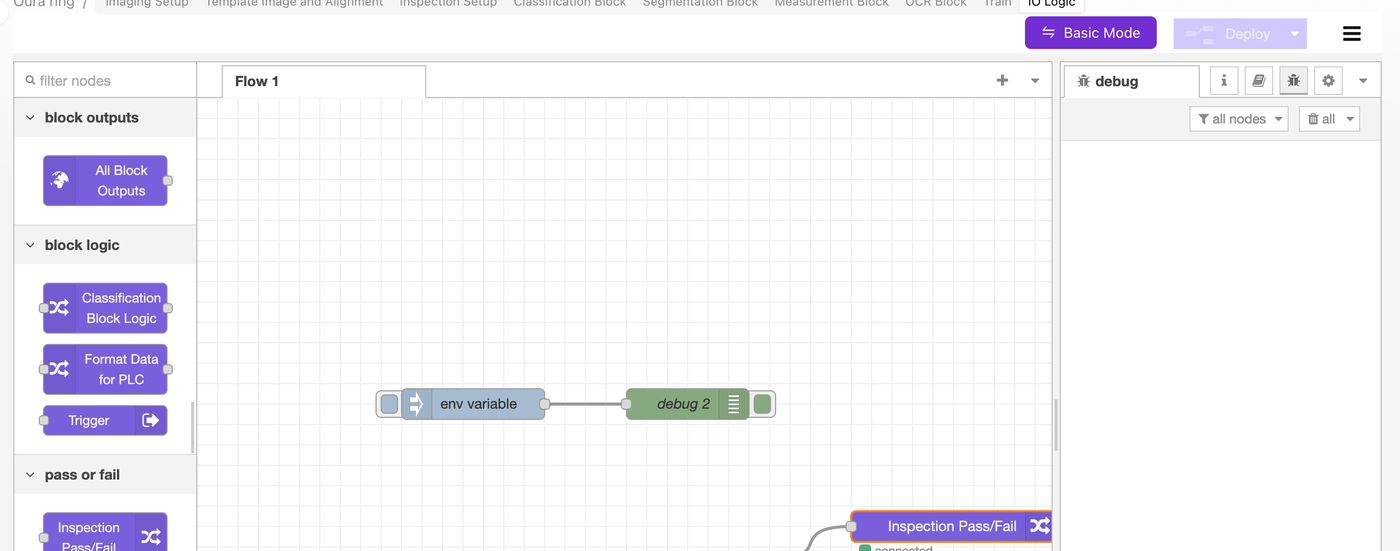
将 Tulip Connector URL 硬编码到 Node-RED 流程中会将流程绑定到一个特定部署。在系统设置 → 环境变量中定义一个 TULIP_ENDPOINT 环境变量,然后通过 ${TULIP_ENDPOINT} 在 HTTP Request 节点中读取它。这样您就可以导出相同的流程并将其重新导入到生产线上的每台相机。完整模式请参阅环境变量。
选择传输方式:HTTP 或 MQTT
| 选项 | 何时使用 | 说明 |
|---|---|---|
| HTTP(推荐用于大多数 Tulip 部署) | Tulip Connector Functions 原生调用 HTTP 端点。从 Tulip 控件按钮触发的最简单方式。 | 无需任何额外基础设施即可工作。Tulip → 相机和相机 → Tulip 都使用普通的 POST。 |
| MQTT | 您的工厂已运行 MQTT broker(Sparkplug B、IT/OT broker 等),并且 Tulip Edge Connector 已配置为与其通信。 | 高频信号传递延迟更低。需要 broker。 |
| OPC UA | 您正在运行带有 OPC UA Connector 的 Tulip Edge MC 实例。 | OV20i 出厂时已预装 OPC UA Node-RED 模型。 |
本指南其余部分的示例使用 HTTP —— 这是大多数 Tulip 部署的默认方式。相同的模式也适用于 MQTT(将 HTTP IN / HTTP Request 节点替换为 MQTT in / MQTT out 节点)。
1. 从 Tulip 应用触发相机
Tulip 操作员按下按钮 → Tulip 的 Connector Function 调用相机的 Node-RED 正在监听的 HTTP 端点 → Node-RED 触发捕获。
Node-RED 侧:接收触发
在相机的 IO模块(Advanced Mode → Node-RED)中,构建:
[ HTTP IN: POST /trigger ]──▶[ Trigger node ]──▶[ HTTP Response: 200 ok ]
- 从 network 类别中拖入一个 http in 节点。
- Method:
POST - URL:
/trigger
- Method:
- 将其连接到 OV 专用的 Trigger 节点(位于 OV 调色板的 block logic 下)。Trigger 节点会启动相机的捕获流水线。
- 添加一个 http response 节点,以便 Tulip 的 Connector 立即收到
200 OK响应(不要让 Tulip 等待 AI 推理 —— 让结果异步返回,参见第 2 节)。 - 点击 部署。
该端点现已在 http://<CAMERA_IP>/node-red/trigger 上运行(Node-RED 的 HTTP 根路径挂载在 /node-red/ 下)。
Tulip 侧:通过按钮调用触发
在您的 Tulip 账户中:
- 前往 Apps → Connectors,如果还没有,请创建一个新的 HTTP Connector。
- 将 Host 设置为相机的 IP,Port 设置为
80(如果启用了 HTTPS,则为443)。 - 创建一个新的 Connector Function,名为
Trigger Camera:- Method:
POST - Endpoint:
/node-red/trigger - 基本触发不需要 body 或输入参数 —— 相机使用当前活动的程序。
- Method:
- 保存并测试该 Connector Function。您应当看到 200 响应,并且相机应当捕获一张图像。
- 在您的 Tulip 应用中,添加一个 Button 控件。在其操作中,选择 Run Connector Function → Trigger Camera。
当操作员点击按钮时,相机即被触发。
如果您希望在每次触发时发送序列号或零件 ID,请更改 Tulip Connector Function 以接受输入(例如 serial_number),并将其放入请求 body 中。在相机侧,您的 HTTP IN 节点将其作为 msg.payload 接收,您可以将其存储在 flow 变量中,以便结果发送 flow(第 2 节)可以将其附加到检测报告中。
2. 将结果发送回 Tulip
相机捕获后,All Block Outputs 节点会触发,并携带完整的检测结果。模式如下:
[ All Block Outputs ]──▶[ Function: format for Tulip ]──▶[ HTTP Request: POST to Tulip ]
构建流程
- 在 All Block Outputs 节点的下游连接一个 function 节点。
- 该函数将各 ROI 的结果合并为一个全局的通过/失败结果,并将载荷精简为 Tulip 实际需要的内容:
// Read the camera's full inspection payload
const p = msg.payload || {};

// Consolidate per-ROI classifier predictions into a global pass/fail
const preds = p.classification?.predictions || [];
const allPass = preds.length > 0 && preds.every(r => r.predicted_class === 'pass');

// Optional: count segmentation defects (e.g., for thresholded fail)
const defectPixels = (p.segmentation?.blobs || [])
  .reduce((s, b) => s + (b.pixel_count || 0), 0);

// Build a flat object for Tulip (Tulip Connector Functions like flat fields)
msg.payload = {
  result: allPass ? "pass" : "fail",
  inspection_id: p.inspection_id || null,
  timestamp: new Date().toISOString(),
  image_url: p.image_url || null,            // see Section 4 for displaying this in Tulip
  defect_pixel_count: defectPixels,
  per_roi: preds.map(r => ({
    roi: r.roi_name,
    class: r.predicted_class,
    confidence: r.confidence,
  })),
  // If you stashed a serial number from the trigger (see Section 1), add it:
  // serial_number: flow.get('lastSerial') || null,
};

// Set headers for the outbound HTTP request
msg.headers = { 'Content-Type': 'application/json' };
msg.method = 'POST';
return msg;
- 将其连接到 http request 节点:
- Method:
POST(或使用上述函数中的msg.method) - URL:
${TULIP_ENDPOINT}(从环境变量读取)或硬编码的 Tulip Connector URL - Return:
a UTF-8 string(如果 Tulip 端点返回 JSON,则使用 JSON)
- Method:
- 在 HTTP 请求节点之后连接一个 debug 节点,以便在测试时查看 Tulip 的响应。
- 点击 Deploy。
Tulip 端:接收结果
在 Tulip 中:
- 在接收方向上创建一个 HTTP Connector Function——一个 webhook 端点,或者使用 Tulip 的 Tables API 将结果写入 Tulip 表。
- 配置 Tulip 应用的逻辑以响应入站载荷(例如,更新状态指示器、记录到表中、递增计数器)。
对于 Tulip 表,具体模式是通过 POST 请求将 result、serial_number、timestamp 字段发送到 https://<your-tulip-instance>.tulip.co/api/v3/tables/<table_id>/records。在 Authorization 头中使用 Tulip API 令牌——将令牌作为凭据存储在 HTTP Connector 上,而不是存储在 Node-RED 流程中。
3. 从 Tulip 切换程序
当产品类型发生变化时(条码扫描、下拉选择、派工),操作员通常需要切换到不同的程序。相机提供了一个内置的 HTTP 端点,可通过 ID 激活程序。
查找程序 ID
- 在程序编辑器中打开程序。
- 查看浏览器地址栏:
/recipes/15/editor→ ID 为15。
构建程序切换流程
[ HTTP IN: POST /change-recipe ]──▶[ Function: format request ]──▶[ HTTP Request: POST localhost:5001/pipeline/activate ]──▶[ HTTP Response ]
- HTTP IN 节点:
POST /change-recipe。Tulip 将使用类似{ "id": 15 }的请求体调用此接口。 - Function 节点——将程序 ID 传递给相机的内部 API:
const recipeId = msg.payload?.id;
if (!recipeId) {
  msg.statusCode = 400;
  msg.payload = { error: "missing 'id' field" };
  return msg;
}
msg.headers = { 'Content-Type': 'application/json' };
msg.payload = JSON.stringify({ id: recipeId });
msg.method = 'POST';
return msg;
- HTTP Request 节点:
- Method:
POST - URL:
localhost:5001/pipeline/activate - Return:
a parsed JSON object
- Method:
- HTTP Response 节点,以便 Tulip 的 Connector Function 获取返回的状态码。
在相机的 Node-RED 内部,程序切换端点为 localhost:5001/pipeline/activate——这是相机内部管理 API。您是通过 Node-RED 将 Tulip 的请求代理到本地 API。请勿尝试从相机外部直接调用 5001 端口;它仅向相机内部流程开放。
对于较旧的固件(v18.92 之前),URL 为 http://[CAMERA_IP]/edge/pipeline/activate。如果您使用较旧固件且 localhost:5001 无响应,请回退使用 v17/v18 的 URL。建议将相机固件升级至 v18.92+ 以使用新版路径。
Tulip 端:调用程序切换
- 在同一个 HTTP Connector 上添加一个 Connector Function
Switch Recipe。 - Method:
POST,Endpoint:/node-red/change-recipe。 - 添加一个输入参数
recipe_id(数字)。 - 将请求体设置为
{ "id": $recipe_id }。 - 在您的 Tulip 应用中,将 Barcode Scanner 触发器或 Dropdown 控件连接到此函数,并使用匹配的程序 ID 进行调用。
操作员扫描条形码 → Tulip 查找该零件对应的程序 ID → Connector Function 调用相机 → 相机在一秒内切换程序。
4. 在 Tulip 中显示实时图像(带边界框)
Tulip 的 Image Widget 可以显示任何返回图像的 URL。OV20i 具有一个内置的 HMI URL,可返回最新的捕获图像,并在其上绘制边界框和 ROI 叠加层:
http://<CAMERA_IP>/live-feed

要将其嵌入 Tulip 应用:
- 在 Tulip 步骤中添加一个 Image Widget。
- 将 Image URL 设置为从检测结果填充的 Tulip 变量,或者如果每台相机有自己的仪表板步骤,则设置为静态 URL。
- 最简单的模式:硬编码
http://<CAMERA_IP>/live-feed,让它在每次捕获时自动刷新(当 Tulip 的图像控件的 URL 或查询参数更改时会刷新——附加?t={{timestamp}}以强制刷新)。
如果您想要原始捕获图像(无边界框),请改用 msg.payload 中的 image_url——这是指向相机库中已保存图像的每次捕获 URL。
如果您在同一条产线上有多台相机,每台都有自己的 IP,请按应用步骤将相机 URL 存储在 Tulip 变量中,并让操作员选择要查看的工位。当变量更改时,Image Widget 会立即切换。
参考流程(可导入的 Node-RED JSON)
下方流程组合了全部四种集成方式:触发 HTTP IN、结果发送 HTTP Request、程序切换器和调试节点。复制 JSON,打开 Node-RED → 汉堡菜单 → Import,然后粘贴。
[
  {
    "id": "tulip_trigger_in",
    "type": "http in",
    "name": "POST /trigger",
    "url": "/trigger",
    "method": "post",
    "x": 160, "y": 100, "wires": [["tulip_trigger_fire"]]
  },
  {
    "id": "tulip_trigger_fire",
    "type": "trigger-camera",
    "name": "Trigger camera",
    "x": 380, "y": 100, "wires": [["tulip_trigger_resp"]]
  },
  {
    "id": "tulip_trigger_resp",
    "type": "http response",
    "name": "200 ok",
    "statusCode": "200",
    "x": 580, "y": 100, "wires": []
  },
  {
    "id": "tulip_results_format",
    "type": "function",
    "name": "Format for Tulip",
    "func": "const p = msg.payload || {};\nconst preds = p.classification?.predictions || [];\nconst allPass = preds.length > 0 && preds.every(r => r.predicted_class === 'pass');\nmsg.payload = {\n  result: allPass ? 'pass' : 'fail',\n  timestamp: new Date().toISOString(),\n  image_url: p.image_url || null,\n  per_roi: preds.map(r => ({roi: r.roi_name, class: r.predicted_class, confidence: r.confidence}))\n};\nmsg.headers = {'Content-Type':'application/json'};\nmsg.method = 'POST';\nreturn msg;",
    "x": 380, "y": 200, "wires": [["tulip_results_send"]]
  },
  {
    "id": "tulip_results_send",
    "type": "http request",
    "name": "POST to Tulip",
    "method": "POST",
    "url": "${TULIP_ENDPOINT}",
    "ret": "obj",
    "x": 600, "y": 200, "wires": [["tulip_results_debug"]]
  },
  {
    "id": "tulip_results_debug",
    "type": "debug",
    "name": "Tulip response",
    "x": 800, "y": 200, "wires": []
  },
  {
    "id": "tulip_recipe_in",
    "type": "http in",
    "name": "POST /change-recipe",
    "url": "/change-recipe",
    "method": "post",
    "x": 160, "y": 300, "wires": [["tulip_recipe_format"]]
  },
  {
    "id": "tulip_recipe_format",
    "type": "function",
    "name": "Format request",
    "func": "const id = msg.payload?.id;\nif (!id) { msg.statusCode = 400; msg.payload = {error:'missing id'}; return msg; }\nmsg.headers = {'Content-Type':'application/json'};\nmsg.payload = JSON.stringify({id});\nmsg.method = 'POST';\nreturn msg;",
    "x": 380, "y": 300, "wires": [["tulip_recipe_call"]]
  },
  {
    "id": "tulip_recipe_call",
    "type": "http request",
    "name": "/pipeline/activate",
    "method": "POST",
    "url": "localhost:5001/pipeline/activate",
    "ret": "obj",
    "x": 600, "y": 300, "wires": [["tulip_recipe_resp"]]
  },
  {
    "id": "tulip_recipe_resp",
    "type": "http response",
    "name": "to Tulip",
    "x": 800, "y": 300, "wires": []
  }
]
您仍需将 All Block Outputs 节点连接到 tulip_results_format(该节点未包含在上述 JSON 中,因为它是 OV 特有的,并且已存在于每个流程中)。
故障排除
| 现象 | 原因 / 解决方法 |
|---|---|
Tulip Connector 返回 connection refused | 相机和 Tulip Edge Device 不在同一网络,或相机防火墙阻止了端口 80。两者必须能互相访问;先从 Tulip Edge Device ping 相机。 |
| 触发 HTTP IN 从未触发 | 添加节点后忘记在 Node-RED 中部署,或者 URL 拼写错误(必须以 / 开头,而非 /node-red/)。 |
| 程序切换返回 404 | 端点与您的固件不匹配。v18.92 之前的版本使用相机 IP 的 /edge/pipeline/activate;v18.92+ 使用 Node-RED 内部的 localhost:5001/pipeline/activate。 |
/live-feed 在 Tulip 中显示黑色图像 | 相机尚未进行捕获,或图像未刷新。追加 ?t={{Date.now()}} 以强制 Image Widget 重新获取。 |
| Tulip 收到 200 但没有结果正文 | 相机触发后立即返回 200 — 结果通过结果发送流程(第 2 节)异步返回。请确保该流程已连接并部署。 |
| 每个 ROI 的结果过于杂乱 / Tulip 仅需要 pass/fail | 这正是 Function 节点在发送前将所有内容整合为单一 `result: "pass" |
后续步骤
- 环境变量 — 将
TULIP_ENDPOINT及其他部署特定配置保留在流程之外。 - 连接到 PLC (EtherNet/IP 和 PROFINET) — 用于与 Tulip 并行的 PLC 集成。
- Overview Node-RED 自定义模块 — OV 专用调色板节点(Trigger、All Block Outputs 等)的参考。
- 设置输出(第 5 步) — Node-RED 在更广泛的通过/失败流程中的位置。