AI 驱动文档
您想了解什么?
使用 Node-RED 发送电子邮件
本教程将向您展示如何使用 Node-RED 设置来自 OV20i 相机的自动电子邮件通知。您将学习如何配置 Gmail 集成并创建发送检查警报、系统状态更新和故障通知的流程,直接发送到您的电子邮件。
您将构建的内容: 一个自动电子邮件系统,使用 Gmail SMTP 向指定收件人发送 OV20i 检查结果、警报和通知。
实际应用: 当检查失败时立即获取电子邮件警报,向管理层发送每日质量报告,或自动通知维护团队系统问题 - 所有这些都来自您的视觉检查系统。
先决条件
- 具有 Node-RED 访问权限的 OV20i 相机
- 用于发送电子邮件的 Gmail 账户
- 对 Node-RED 流程的基本理解
- 访问 Google 账户安全设置
教程概述
我们将构建的内容: 一个 Node-RED 流程,自动发送包含检查结果和系统警报的电子邮件通知。
所需时间: 20-30 分钟(包括 Gmail 设置)
学习的技能: Gmail 应用密码设置、SMTP 配置、自动电子邮件通知
第一步:设置 Gmail 应用密码
1.1 启用两步验证
- 登录您的 Google 账户,访问 accounts.google.com
- 在左侧导航菜单中点击“安全性”
- 找到“登录 Google” 部分
- 点击“2 步验证”
- 按照提示 启用 2 步验证(如果尚未启用)
在您可以创建应用密码之前,需要启用 2 步验证。
1.2 生成应用密码
- 启用 2 步验证后返回安全页面
- 点击“应用密码”(在“登录 Google”下)
- 选择“邮件” 作为应用类型
- 选择“其他” 作为设备类型
- 输入名称,如“OV20i Node-RED Email”
- 点击“生成”
1.3 保存您的应用密码
- 复制 Google 显示的 16 位密码
- 安全存储 - 您将在 Node-RED 配置中需要它
- 注意: 此密码仅显示一次。如果丢失,请生成一个新密码
检查点: 您应该已保存一个用于 Node-RED 的 16 位 Gmail 应用密码。
第二步:安装电子邮件节点(如有需要)
2.1 检查电子邮件节点
- 在 OV20i 相机上打开 Node-RED
- 在左侧调色板中查找 输出部分的“电子邮件”节点
- 如果缺失,您需要安装电子邮件包
2.2 安装电子邮件包(如有需要)
- 点击 Node-RED 中的汉堡菜单 (≡)
- 选择“管理调色板”
- 点击“安装”选项卡
- 搜索“node-red-node-email”
- 点击“安装” 旁边的包
第三步:创建基本电子邮件流程
3.1 添加所需节点
- 导航到 IO 块 以访问 Node-RED
- 将这些节点 从调色板拖到画布上:
- 注入节点(用于测试)
- 电子邮件节点(来自输出部分)
- 将注入输出 连接到 电子邮件输入
3.2 基本流程结构
Inject → Email
流程目的: 用于测试和基本通知的简单电子邮件发送。

第 4 步:配置电子邮件内容
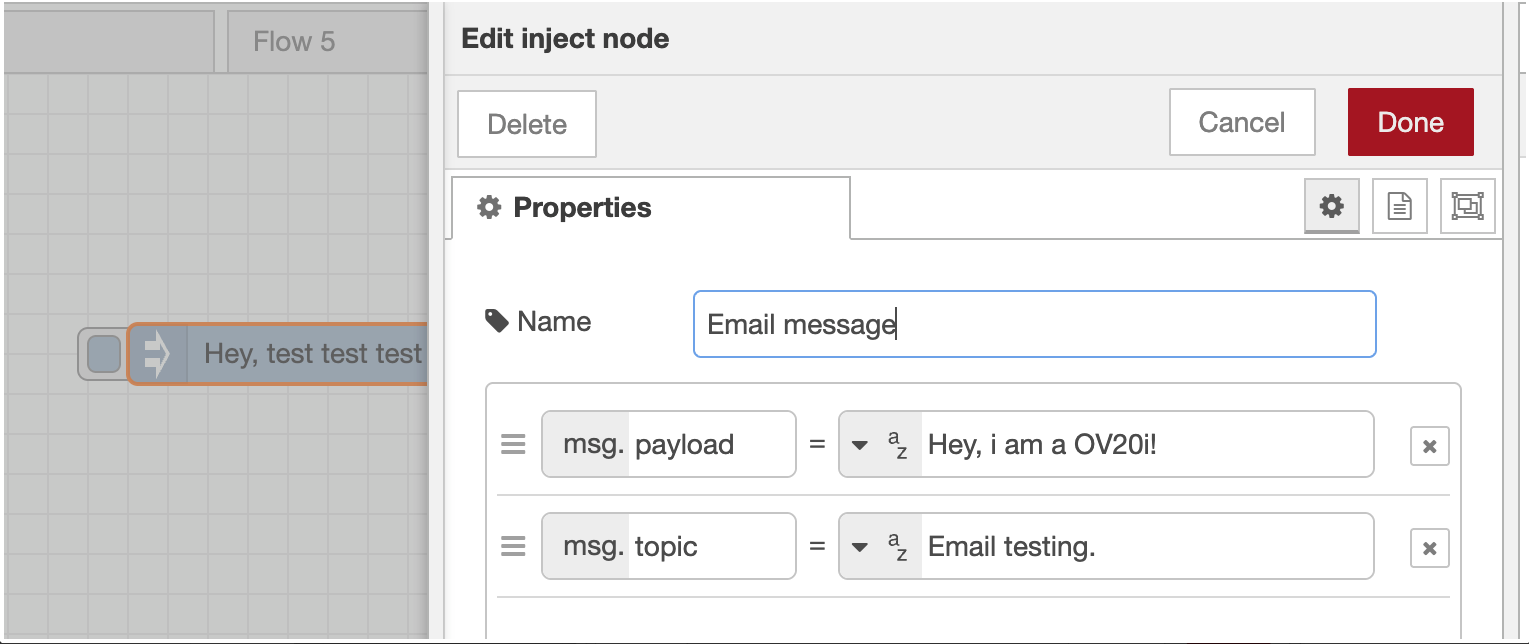
4.1 设置注入节点
- 双击注入节点以打开属性
- 设置有效负载:
- 有效负载类型:“string”
- 有效负载值:您的电子邮件正文文本(例如,“来自 OV20i 的检查警报”)
- 添加电子邮件主题:
-
**点击“+ 添加”**以添加属性
-
属性名称:“topic”
-
属性值:您的电子邮件主题(例如,“OV20i 检查警报”)
-
4.2 示例基本配置
有效负载(电子邮件正文):
Inspection completed at Station 1
Status: Alert triggered
Time: Check timestamp for details
主题(电子邮件主题):
OV20i Inspection Alert - Station 1
4.3 保存注入配置
- 给节点命名,例如“电子邮件触发器”
- **点击“完成”**以保存配置
第 5 步:配置电子邮件 SMTP 设置
5.1 设置电子邮件节点
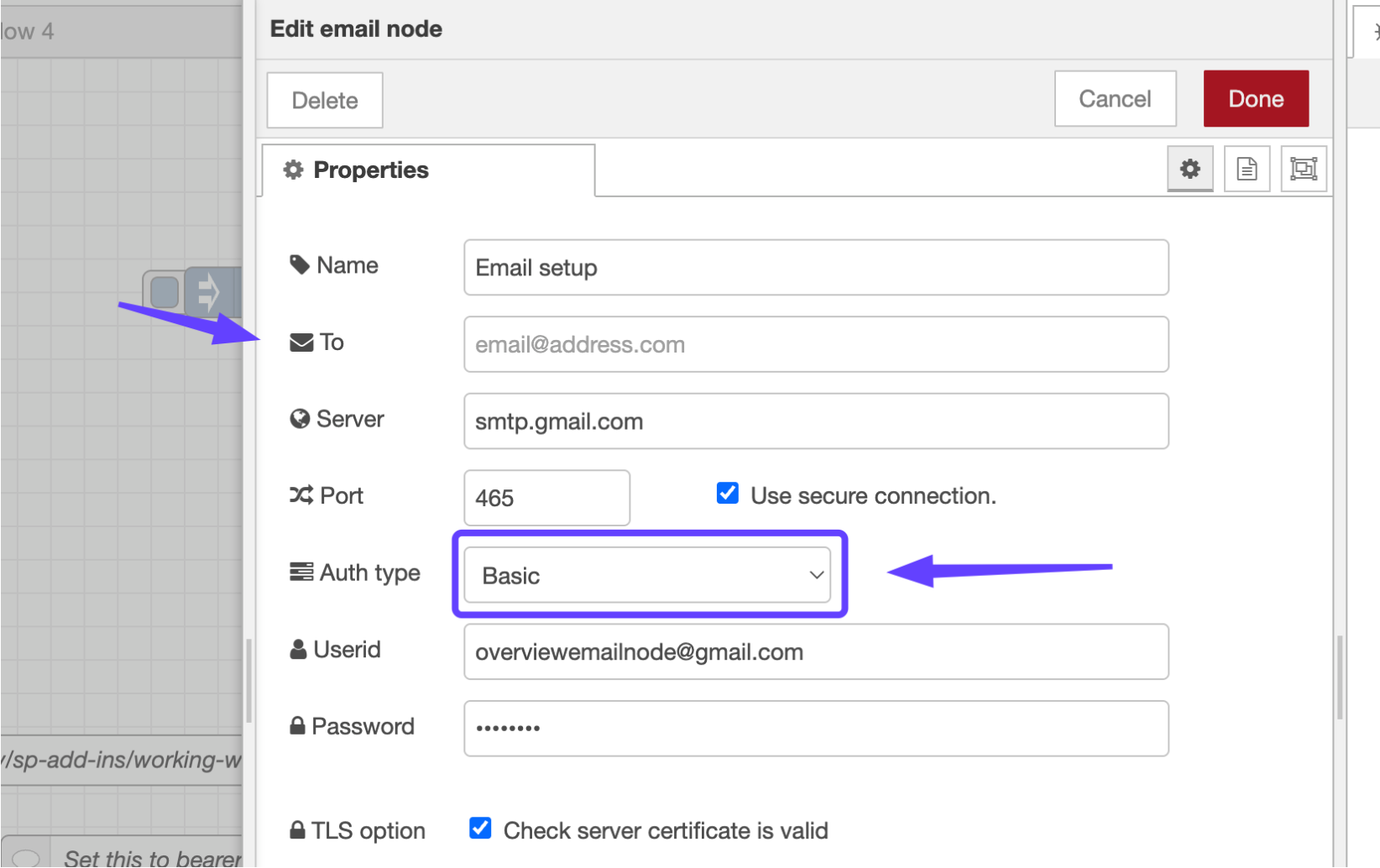
- 双击电子邮件节点以打开属性
- 配置基本设置:
- 名称:“发送警报电子邮件”(或描述性名称)
- 收件人:收件人电子邮件地址(例如,quality@company.com)
5.2 配置 Gmail SMTP
- 服务器:
smtp.gmail.com - 端口:
465 - 勾选“使用安全连接”
- 身份验证类型:
Basic - 用户 ID:您的完整 Gmail 地址(例如,alerts@company.com)
- 密码:第 1 步中的 16 位应用密码
5.3 安全设置
- 勾选“检查服务器证书是否有效”
- 验证所有设置是否正确输入
- **点击“完成”**以保存电子邮件节点配置
**检查点:**您的电子邮件节点应显示无错误指示器,并显示收件人地址。
第 6 步:测试您的电子邮件流程
6.1 部署和测试
- **点击右上角的“部署”**按钮
- **等待“成功部署”**消息
- 点击注入节点按钮(左侧的灰色方块)
6.2 验证电子邮件送达
- 检查收件人电子邮件以获取测试消息
- 如果电子邮件未出现在收件箱中,请检查垃圾邮件文件夹
- 查看 Node-RED 调试面板中的任何错误消息
6.3 如有需要进行故障排除
常见问题:
- 错误的应用密码:重新生成 Gmail 应用密码
- SMTP 设置:验证服务器和端口是否正确
- 防火墙:确保允许出站 SMTP 流量
第 7 步:与检查结果集成
7.1 连接到检查流程
要根据检查结果发送电子邮件:
- 找到您的主要检查流程(以“All Block Outputs”开头)
- 将您的电子邮件流程作为检查处理的一个分支添加
- 在检查逻辑后连接,但与最终结果并行
7.2 示例集成流程
All Block Outputs → [Inspection Logic] → Final Pass/Fail
                                      ↓
                              Format Email → Send Email

7.3 动态电子邮件内容
将注入节点替换为功能节点以实现动态内容:
// Dynamic email based on inspection results
const result = msg.payload.result ? "PASSED" : "FAILED";
const timestamp = new Date().toLocaleString();
const station = global.get("station_name") || "Unknown Station";

// Set email subject
msg.topic = `Inspection ${result} - ${station}`;

// Set email body
msg.payload = `Inspection Report:
Status: ${result}
Station: ${station}
Time: ${timestamp}
Image: ${msg.payload.image_url || "No image available"}

Please review and take appropriate action.`;

return msg;
第 8 步:完整流程示例
8.1 导入现成流程
您可以导入此完整流程 JSON:
[
  {
    "id": "email_node_1",
    "type": "e-mail",
    "name": "Send Inspection Alert",
    "server": "smtp.gmail.com",
    "port": "465",
    "secure": true,
    "authtype": "BASIC",
    "to": "quality@company.com"
  },
  {
    "id": "format_email",
    "type": "function",
    "name": "Format Email Content",
    "func": "const result = msg.payload.result ? 'PASSED' : 'FAILED';\nmsg.topic = `Inspection ${result}`;\nmsg.payload = `Status: ${result}\\nTime: ${new Date()}`;\nreturn msg;"
  }
]
8.2 根据您的需求进行定制
- 更新电子邮件地址以适应您的组织
- 修改电子邮件内容以满足您的特定要求
- 调整时机和触发条件
- 在生产部署前进行全面测试
故障排除
常见问题
| 问题 | 症状 | 解决方案 |
|---|---|---|
| 认证失败 | “登录失败”错误 | 验证应用密码是否正确,并确保启用了两步验证 |
| 连接超时 | 未发送电子邮件,超时错误 | 检查防火墙设置,验证 SMTP 服务器和端口 |
| 电子邮件在垃圾邮件中 | 电子邮件已送达但在垃圾邮件文件夹中 | 将发件人添加到安全列表,提高电子邮件内容 |
| 流程未触发 | 无调试输出 | 检查流程连接和触发条件 |
调试您的电子邮件流程
- 在每个步骤后添加调试节点以追踪数据
- 检查 Node-RED 日志以获取详细错误信息
- 如有需要,使用外部电子邮件客户端测试 SMTP 设置
- 验证从相机到 Gmail 服务器的网络连接
成功!您的电子邮件集成已完成
您的 OV20i 相机现在可以:
✅ 发送自动电子邮件通知以获取检查结果
✅ 发送丰富的格式化消息,包含检查细节
✅ 支持多个收件人和升级工作流程
✅ 提供定期报告和摘要
✅ 根据检查结果处理条件消息
最佳实践
电子邮件管理
- 使用描述性主题,清晰的状态指示
- 保持消息简洁但信息丰富
- 包含时间戳和站点标识符
- 在通知中提供可操作的信息
安全性和可靠性
- 保护应用密码 - 安全存储并定期更换
- 为系统通知使用专用电子邮件账户
- 定期测试电子邮件发送以确保可靠性
- 监控发送失败并准备备份通知方法
性能考虑
- 限制电子邮件频率以避免垃圾邮件检测
- 为不同的警报类型使用适当的收件人列表
- 对高容量系统实施速率限制
- 考虑电子邮件大小,尤其是在包含大型附件时
后续步骤
在设置电子邮件通知后:
- 为不同类型的警报创建电子邮件模板
- 为各个利益相关者设置分发列表
- 为关键问题实施升级工作流
- 为管理层创建定期报告
- 与其他通知系统集成(SMS、Teams 等)
集成构建器 可以根据普通英语描述生成完整的电子邮件通知流程。描述您想要的内容(例如,“在发现缺陷时发送带有检查图像的电子邮件”),并在几秒钟内获得生产就绪的 Node-RED 流。