AI-POWERED DOCS
What do you want to know?
Library
The Library is every capture the camera has kept, with the tool results attached. It is where you go when someone asks why a specific part failed, and where you collect evidence for a recipe change.
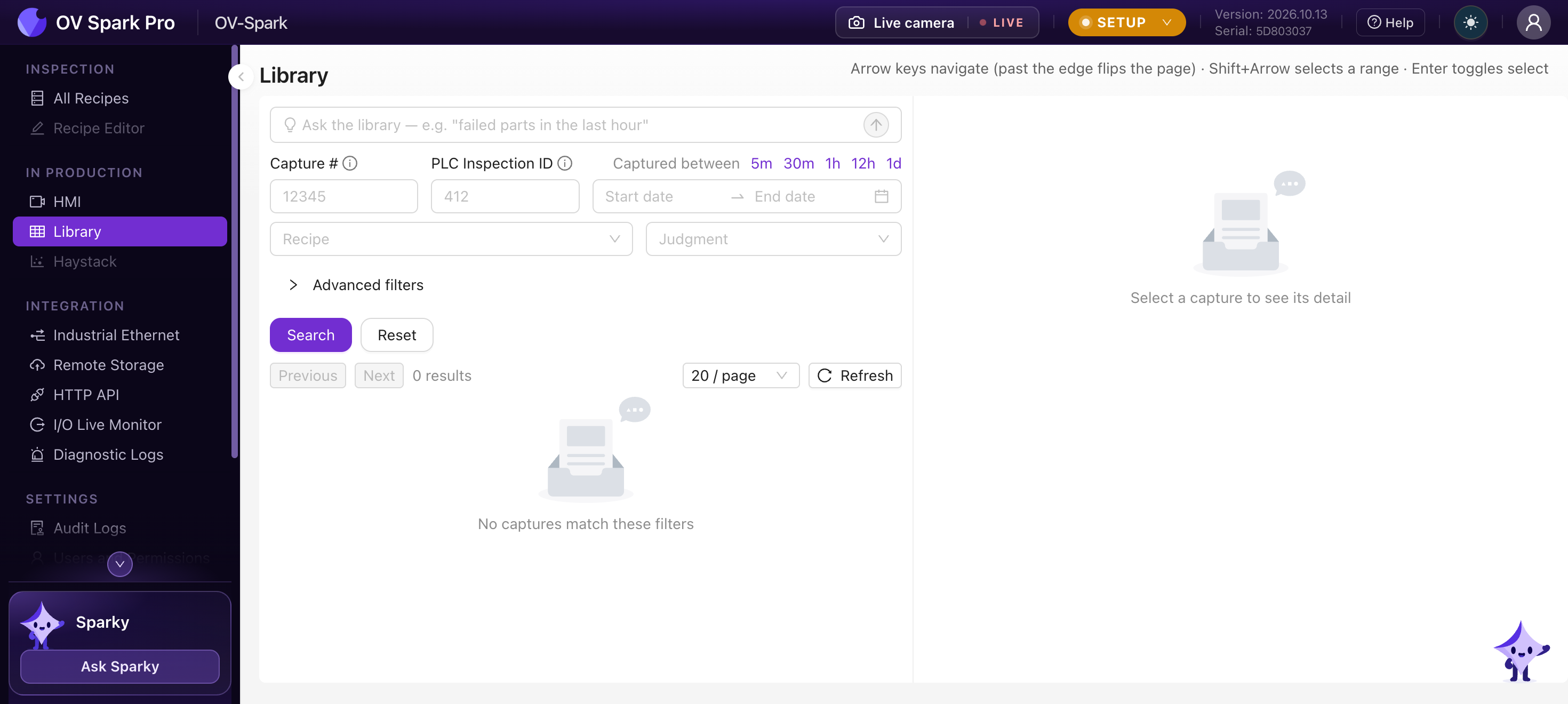
Find the capture
Ask in plain language
At the top is a search box: Ask the library, with the example "failed parts in the last hour". Describe what you want and it fills in the filters below.
If it cannot read your request it says so and changes nothing, rather than silently applying a filter you did not ask for. The filters it does set are visible underneath, so you can always see what it actually searched.
Or filter directly
| Filter | Use it to |
|---|---|
| Capture # | Jump to one exact capture, when support or a report gives you the number |
| PLC Inspection ID | Find the capture behind a result your PLC logged. It is the same Inspection ID the camera reports over the fieldbus (see PLC Handshakes) |
| Captured between | Narrow to a shift or an incident, with 5m to 1d quick-sets |
| Recipe | Limit to one product |
| Judgment | Pass, Fail, Indeterminate or Unspecified |
| Verdict source | Whether the rules or the recipe script decided, or the script failed |
| Tags | Tags the recipe script added, such as near-miss or review |
The inspection counter resets when the camera restarts, so the same PLC inspection ID can appear more than once. Narrow it with Captured between, or use the capture number when you need something genuinely unique.
Advanced filters adds per-tool filtering, and it only shows the tools the selected recipe actually contains. Depending on the recipe you get aligner score ranges, classifier class and confidence, segmentation blob and area ranges, or count ranges. That is how you find, for instance, every capture where the classifier passed but only barely.
The Classifier filter also has a Verdict option, Indeterminate, which lists the undecided regions: those below their class threshold, shown with a gold ? badge.
Copy the address bar and you have sent a colleague the exact view you are looking at, not a description of it.
Read a capture
Selecting a capture opens the detail pane: the image with tool overlays, a Heatmap toggle, and the metadata that matters, being Recipe, Captured at, Processing time, Triggered by and Dimensions. Below that, each tool's result with its score and processing time, plus Notes and Annotations.
From firmware 2026.10.30 the detail pane also shows:
- Variables: each variable the inspection saved, with its source and when the value was received. A value someone set by hand carries a manual badge
- The recipe script's reason, metadata and tags, and its error if it failed
- For AI Segmentation, why the part failed in plain words (for example 12 blobs, max 5), and where the confidence and the blob sizes sit against your limits. Live Preview shows the same view
An undecided AI Classification region has a gold outline and a gold ? badge, and its label reads like Good@62% ?.
Hover over any tool result for a tooltip with its details.
Do something with the results
Select several captures and a toolbar appears:
| Action | Notes |
|---|---|
| Pin / Unpin | Pinned captures are never deleted automatically |
| Download | Plain, or Download with labels, as one ZIP. Downloads include each capture's heat maps, and labelled images carry a footer with the capture's details and each tool's result |
| Delete | Permanent, and it warns you if any selection is pinned |
Use the page-size control to show more captures per page, or type a page number to jump straight to it. Keyboard navigation is quicker than clicking once you have more than a screenful: arrow keys move and flip pages at the edge, Shift with arrows selects a range, Enter toggles selection.
The camera deletes the oldest unpinned captures automatically as new ones arrive. That is normal operation, not a fault. If a capture matters, whether it is evidence for a customer complaint or a training example, pin it, because pinned captures are never deleted.
Firmware before 2026.10.30 had a fault where, once the capture database passed 10 GB, the camera deleted every new capture instead of the oldest ones. If new captures vanish straight away, update the camera.
A practical habit
When a defect escapes to the customer, or a good part gets rejected:
- Find the capture here
- Pin it, so it survives
- Add a note saying what actually happened
- Use it as training data or as a backtest case
Over a few weeks that gives you a real set of the failures your line actually produces, which is worth far more than a synthetic test set.
Who can do what
Every role can browse and download. Operators can also pin, annotate and delete, which is deliberate: those are factory-floor actions that should not need an engineer.
Where to go next
- System Settings, for retention policy